Beginner
15 mins
Teacher/Student led
+105 XP

What you need:
Chromebook/Laptop/PC

Tables

In this lesson, you will learn to create and format tables in Word to add essential information to your school disco poster.
Learning Goals Learning Outcomes Teacher Notes

Teacher Class Feed

Load previous activity

    1 - Create a Table

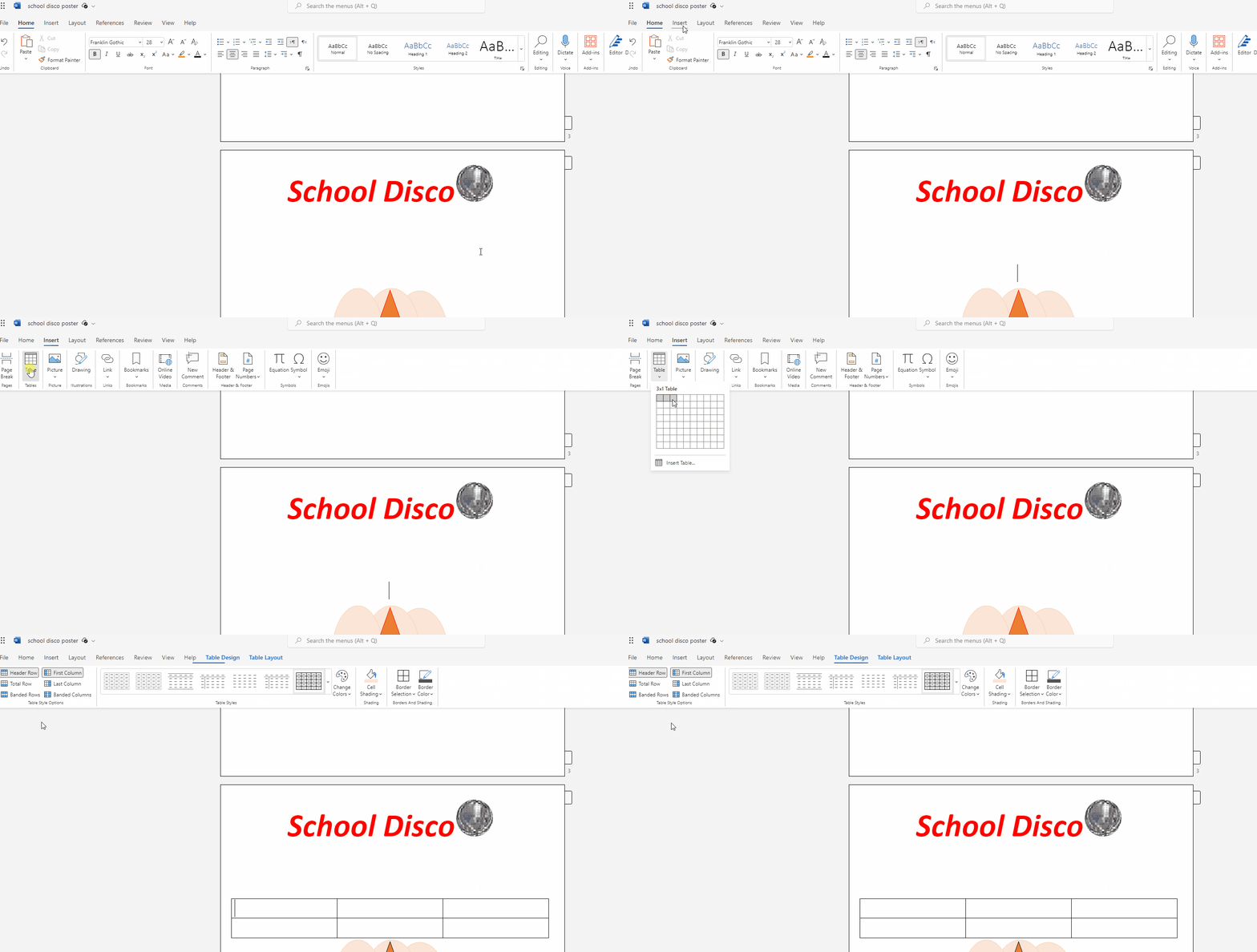
    1. Open your school disco poster document in Word. If you don't have one, create a new Word document and type 'School Disco Poster' at the top.

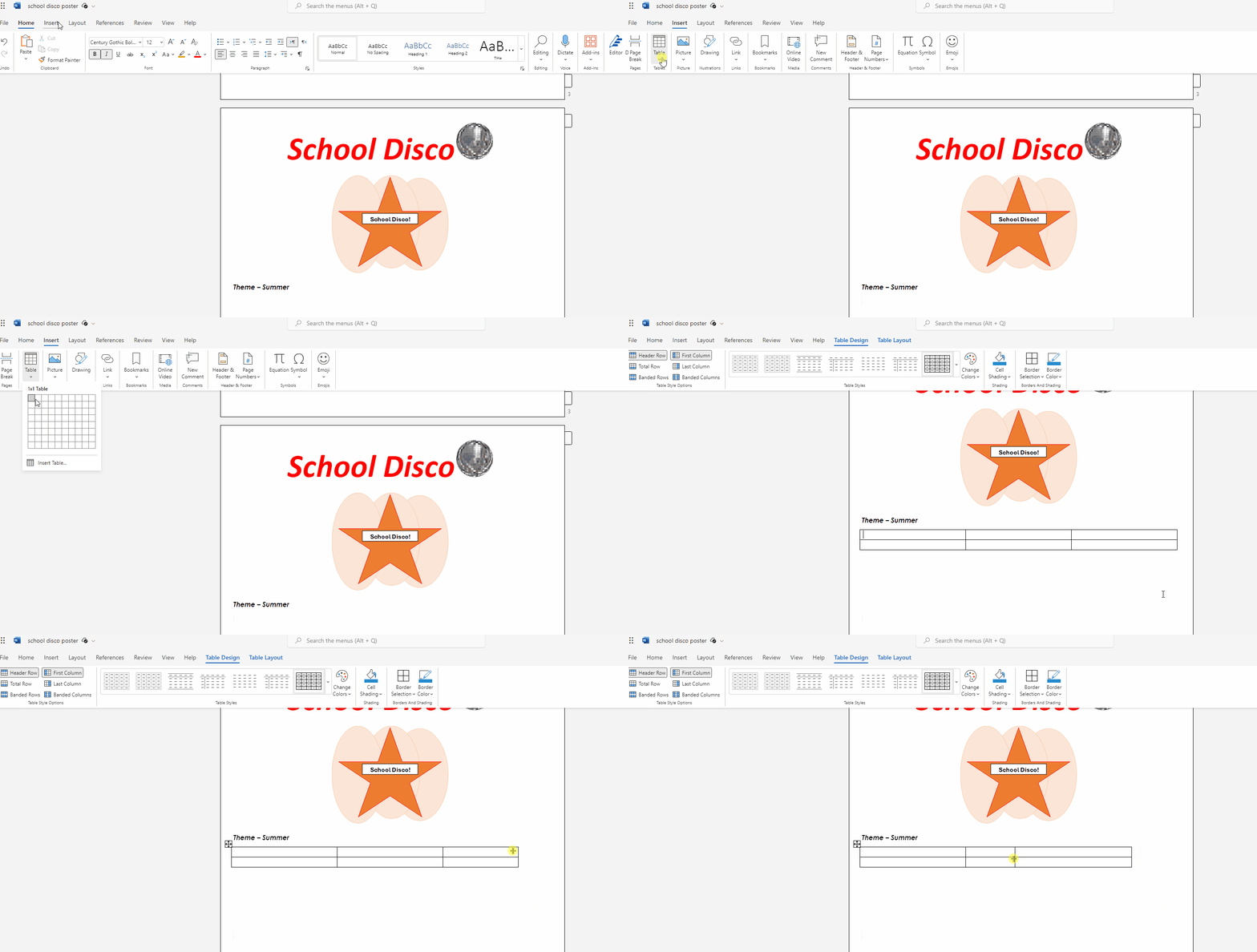
    2. Click on the 'Insert' tab in the Ribbon at the top of the screen.

    3. Locate the 'Table' icon in the 'Tables' group. It looks like a grid with rows and columns.

    4. Click on the 'Table' icon, and a dropdown menu will appear. Move your cursor over the squares to select the number of rows and columns you want for your table. For this lesson, create a table with 3 columns and 4 rows.

    5. Click on the last square in the 3rd column and 4th row to insert the table into your document.


    2 - Add Rows and Columns

    In this step, you will learn how to add rows and columns to your table in Word. Follow these instructions:

    1. Click on the table to select it. You will see small grey boxes on the corners and sides of the table.
    2. To add a row, place your cursor over the small grey box on the bottom edge of the table. When the cursor changes to a double-headed arrow, click and drag downwards to create a new row.
    3. To add a column, place your cursor over the small grey box on the right edge of the table. When the cursor changes to a double-headed arrow, click and drag to the right to create a new column.
    4. Repeat these steps to add as many rows and columns as needed for your school disco poster.

    3 - Enter Table Data

    In this step, you will fill in your table with relevant information for your school disco poster, such as date, time, location, ticket price, and dress code. Follow these instructions:

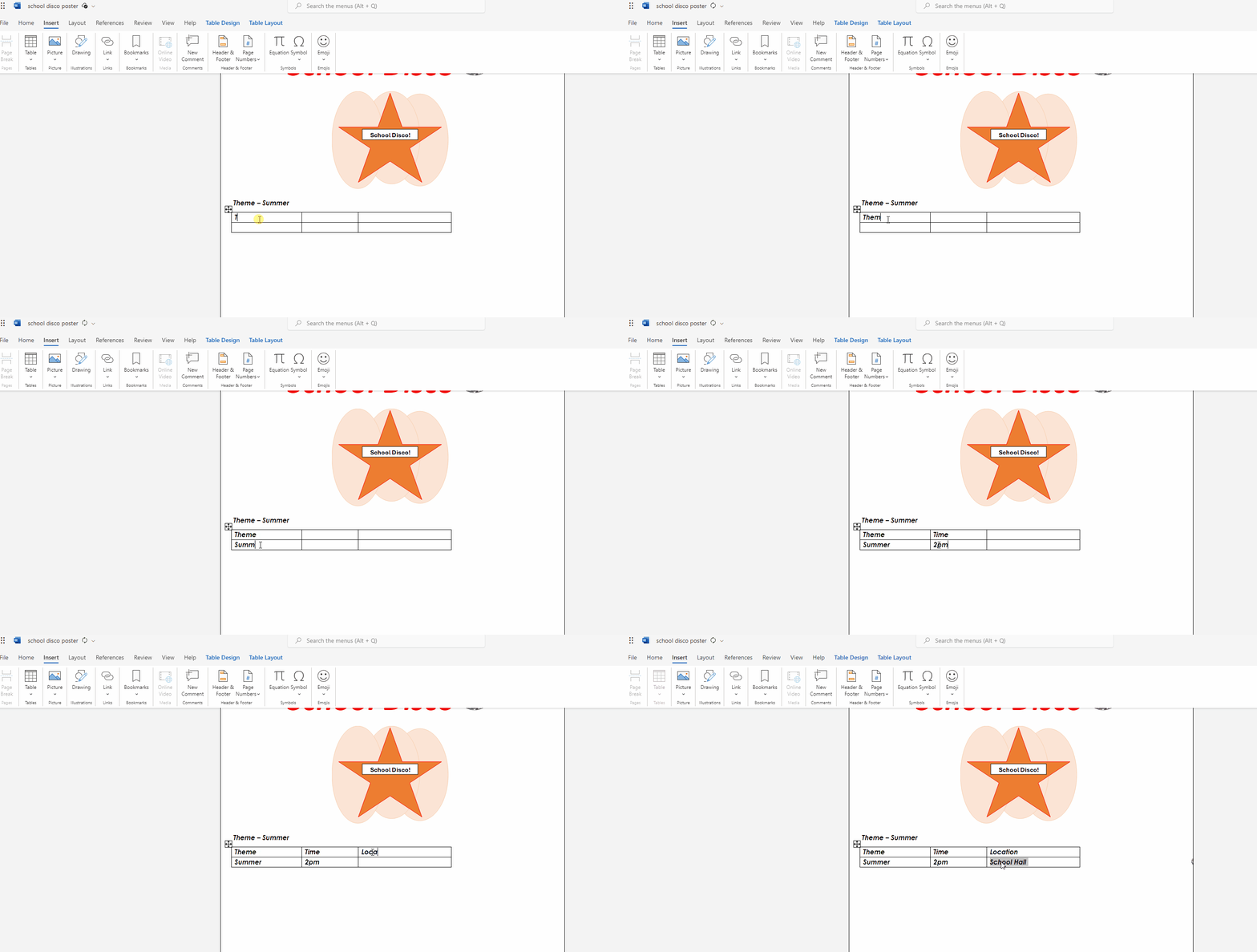
    1. Click on the first cell in the top-left corner of the table.
    2. Type the header 'Date' and press the 'Tab' key on your keyboard to move to the next cell.
    3. In the next cell, type the header 'Time' and press 'Tab' again.
    4. Continue this process to add headers for 'Location', 'Ticket Price', and 'Dress Code'.
    5. Once you have added all the headers, press 'Tab' to move to the first cell in the second row.
    6. Enter the date of the school disco in the 'Date' cell and press 'Tab'.
    7. Fill in the remaining cells in the second row with the appropriate information for time, location, ticket price, and dress code.

    4 - Apply Table Style

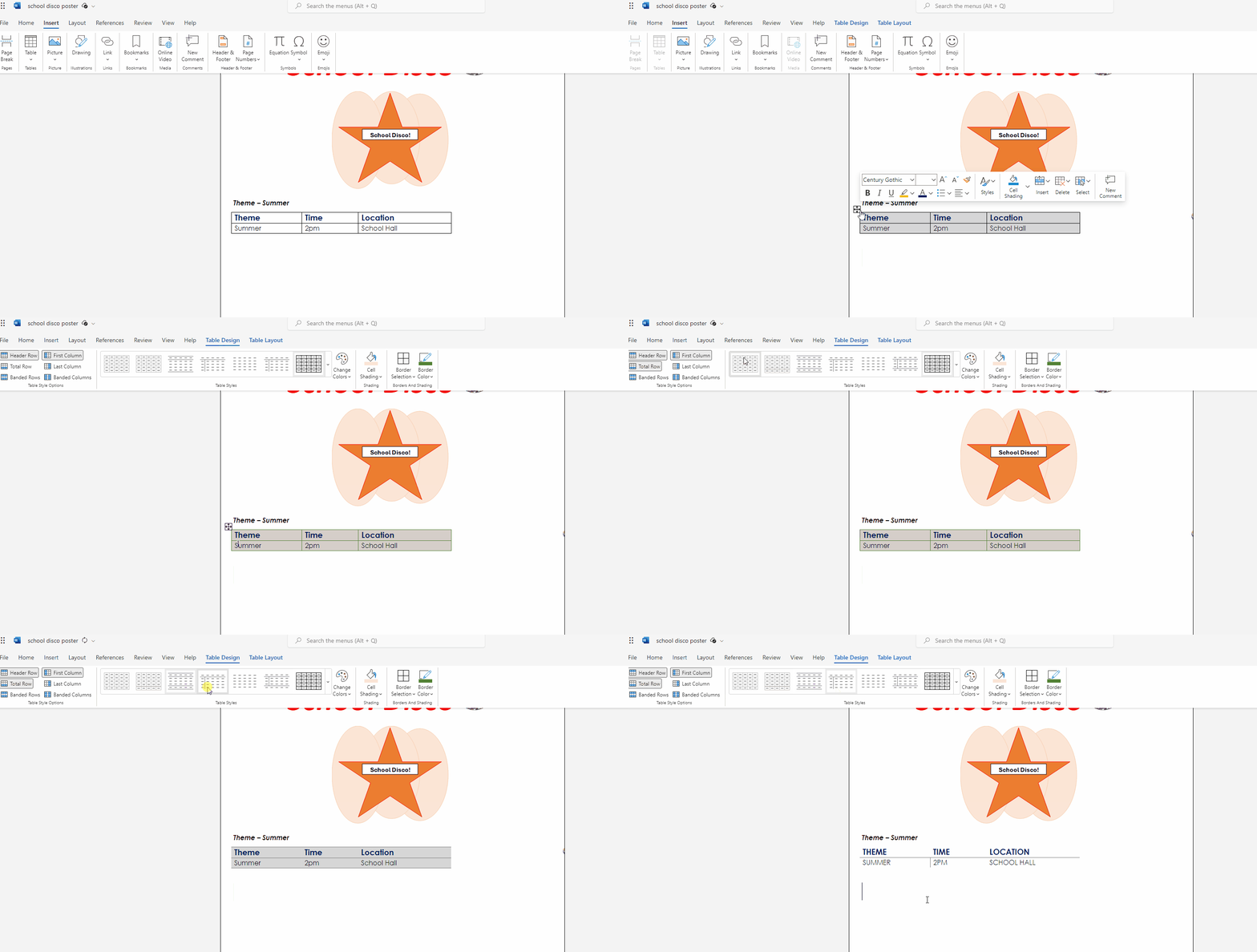
    1. Select your table by clicking on the small square icon in the top-left corner of the table. This will highlight the entire table.

    2. Click on the 'Table Design' tab located at the top of the Word window. This will open a new set of options related to table design and formatting.

    3. In the 'Table Styles' section, browse through the available table styles by scrolling through the list. Choose one that matches your disco poster's theme by clicking on it. This will automatically apply the selected style to your table.

    4. To further customize your table, explore the other options available in the 'Table Design' tab. You can change the table font, background colors, and borders by using the options in the 'Shading', 'Borders', and 'Font' sections.

    5. Experiment with different settings until you are satisfied with the appearance of your table. Remember to keep the design consistent with your disco poster's theme.


    5 - Format Table Text

    In this step, you will format the text within the table to match the overall design of your disco poster. Follow these instructions to change the font, size, color, and styles:

    1. Select the text you want to format within the table by clicking and dragging your cursor over it.
    2. Click on the 'Home' tab in the Word toolbar at the top of the screen.
    3. Choose a font from the 'Font' dropdown menu.
    4. Select a font size from the 'Font Size' dropdown menu or type in a specific size.
    5. Click on the 'Font Color' button (represented by a colored letter 'A') and choose a color from the palette.
    6. Apply additional styles like bold, italic, or underline by clicking the corresponding buttons (B, I, or U) in the toolbar.

    Feel free to experiment with different formatting options to make your table text stand out and match the style of your disco poster. Refer to the 'Captivating Text Formatting' lesson if you need a refresher on text formatting.

    Unlock the Full Learning Experience

    Get ready to embark on an incredible learning journey! Get access to this lesson and hundreds more in our Digital Skills Curriculum.

    Copyright Notice
    This lesson is copyright of Coding Ireland 2017 - 2025. Unauthorised use, copying or distribution is not allowed.
    🍪 Our website uses cookies to make your browsing experience better. By using our website you agree to our use of cookies. Learn more