For this project, we are going to create a game where we fight off zombies by shooting them.
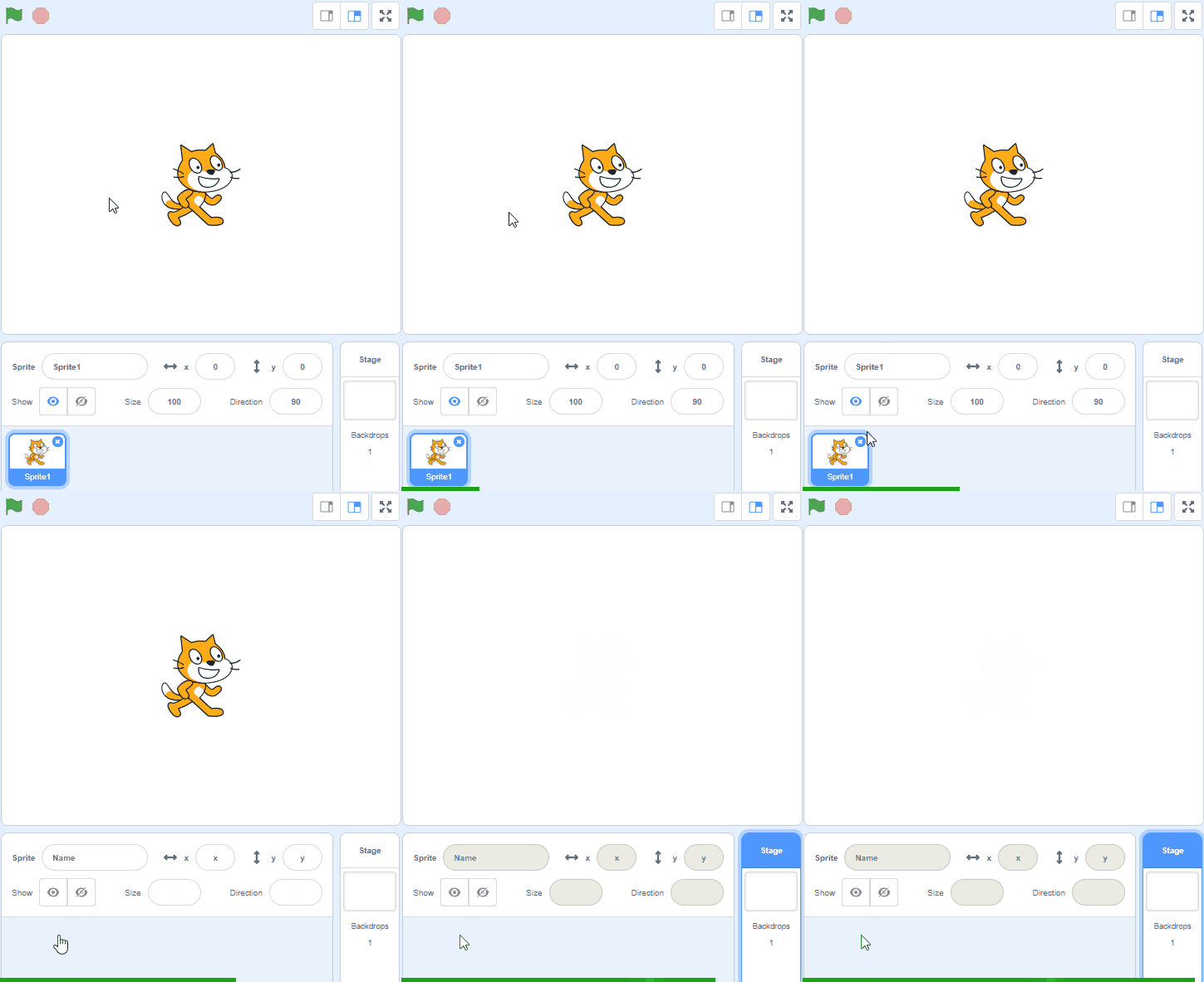
Go to the Scratch website and create a new project and delete the cat sprite.
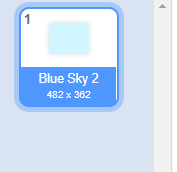
We can also add a backdrop to our game. For this project, we are going to be using the Blue Sky 2 backdrop.
To add the Blue Sky 2 backdrop, we click on the Backdrop Button on the lower right side of the screen and once we can see the backdrops, we can search for the Blue Sky 2 backdrop.
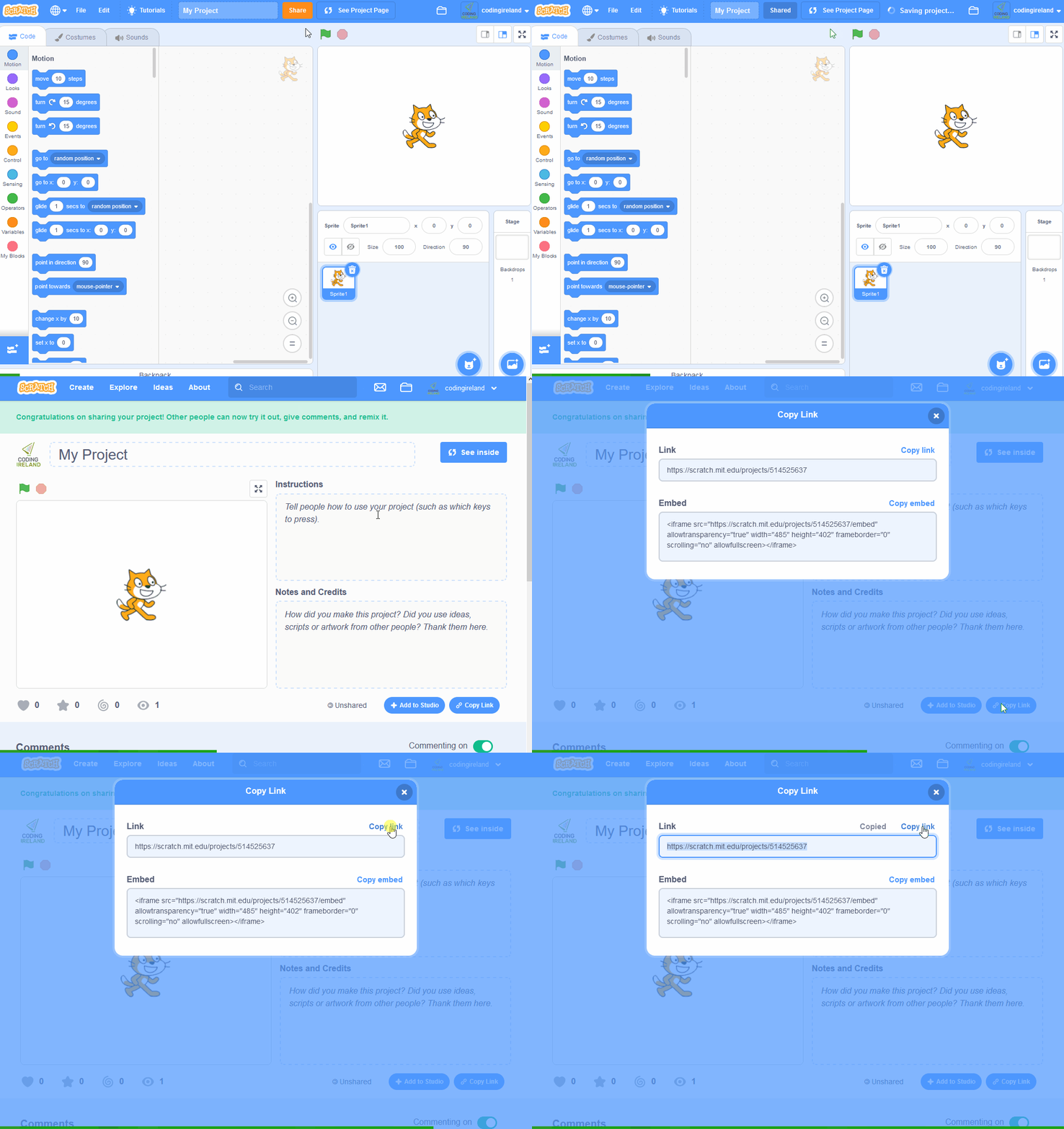
Go to the Scratch website using the link below and click on the 'Create' link in the blue bar at the top.
By default, each new project starts with the cat sprite already added. To delete the cat click on the x in the blue circle beside the cat in the sprite list.
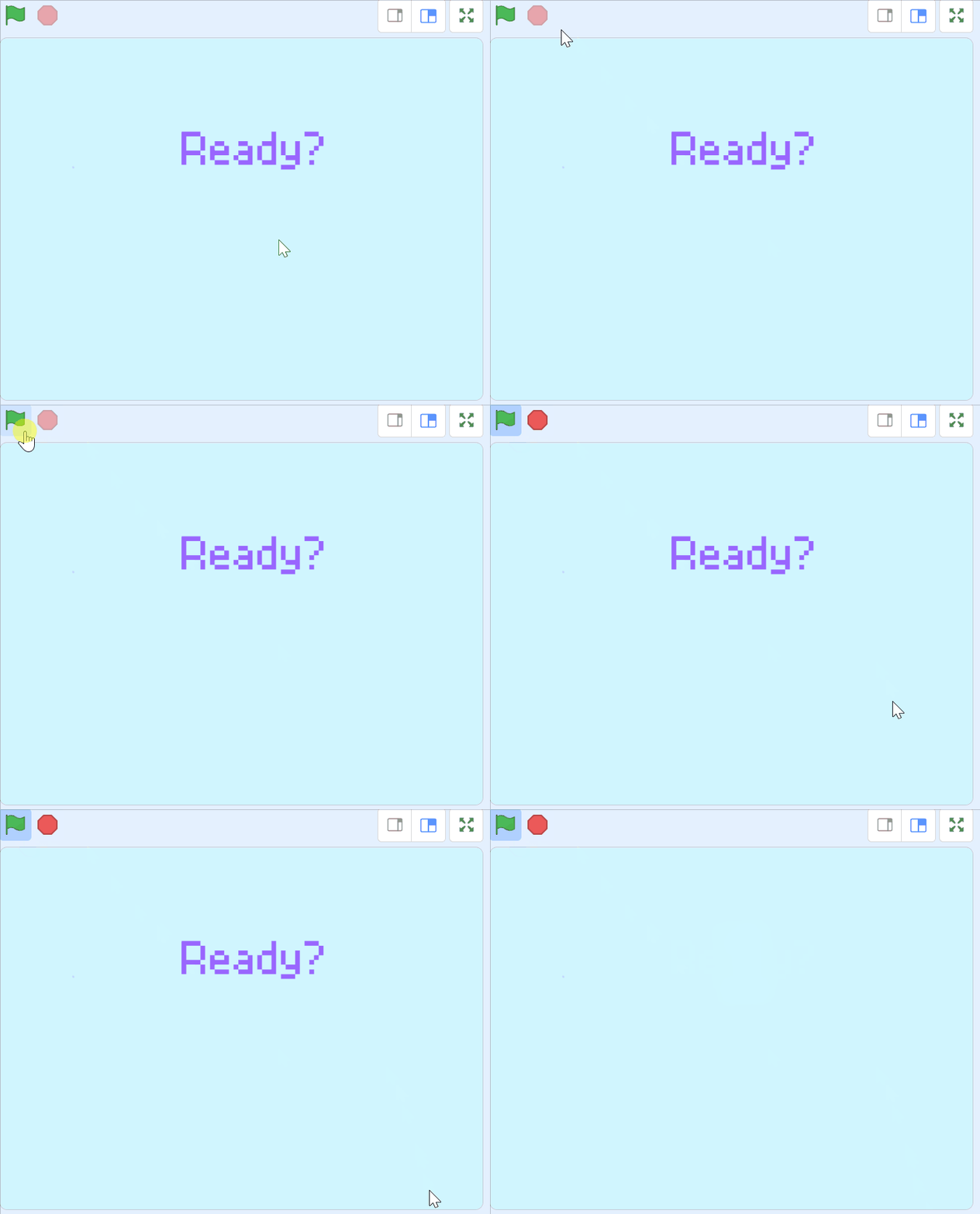
We want our players to be ready before the zombie army invades. To do this, we can create a countdown timer sprite to help our players get ready.
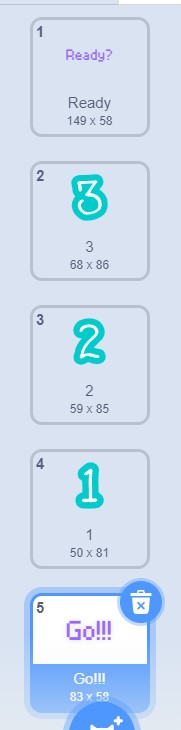
For our countdown timer sprite, we need to have five costumes in this order; Costume number 1 will be Ready?, Costume number 2 will be our number 3, Costume number 3 will be our number 2, Costume number 4 will be our number 1 and Costume number 5 will be our Go! costume.
To create the countdown timer sprite, we can go to the Scratch Sprite Library and look for the Number 3 sprite.
Then, we can add the number 2 and 1 costumes by adding more costumes to our sprite. To create the Ready and Go! costumes, we can duplicate our number 3 costume and change the number 3 to the words Ready? and Go!. We should also keep in mind the we need to correctly order our costumes based on what order we want them to be.
when green flag clicked
show
switch costume to (Ready v)
wait (2) seconds
switch costume to (3 v)
start sound (D Elec Piano v)
wait (1) seconds
switch costume to (2 v)
start sound (D Elec Piano v)
wait (1) seconds
switch costume to (1 v)
start sound (D Elec Piano v)
wait (1) seconds
switch costume to (Go!!! v)
start sound (Gong v)
broadcast (Start v)
hide
You can create your own sprites using the sprite editor. To create a new sprite put your mouse over the Choose a Sprite button and then click on the paintbrush.
This create a blank sprite and will open the sprite editor where you can use the tools to create your sprite. You can even create extra costumes for your sprite!
Tip: give your sprite a name so that you can recognise it in the code blocks.
For this project, we want to have a Player sprite and a Tank sprite.
The Player sprite will handle the movement of our character while the Tank sprite will handle the shooting of zombies.
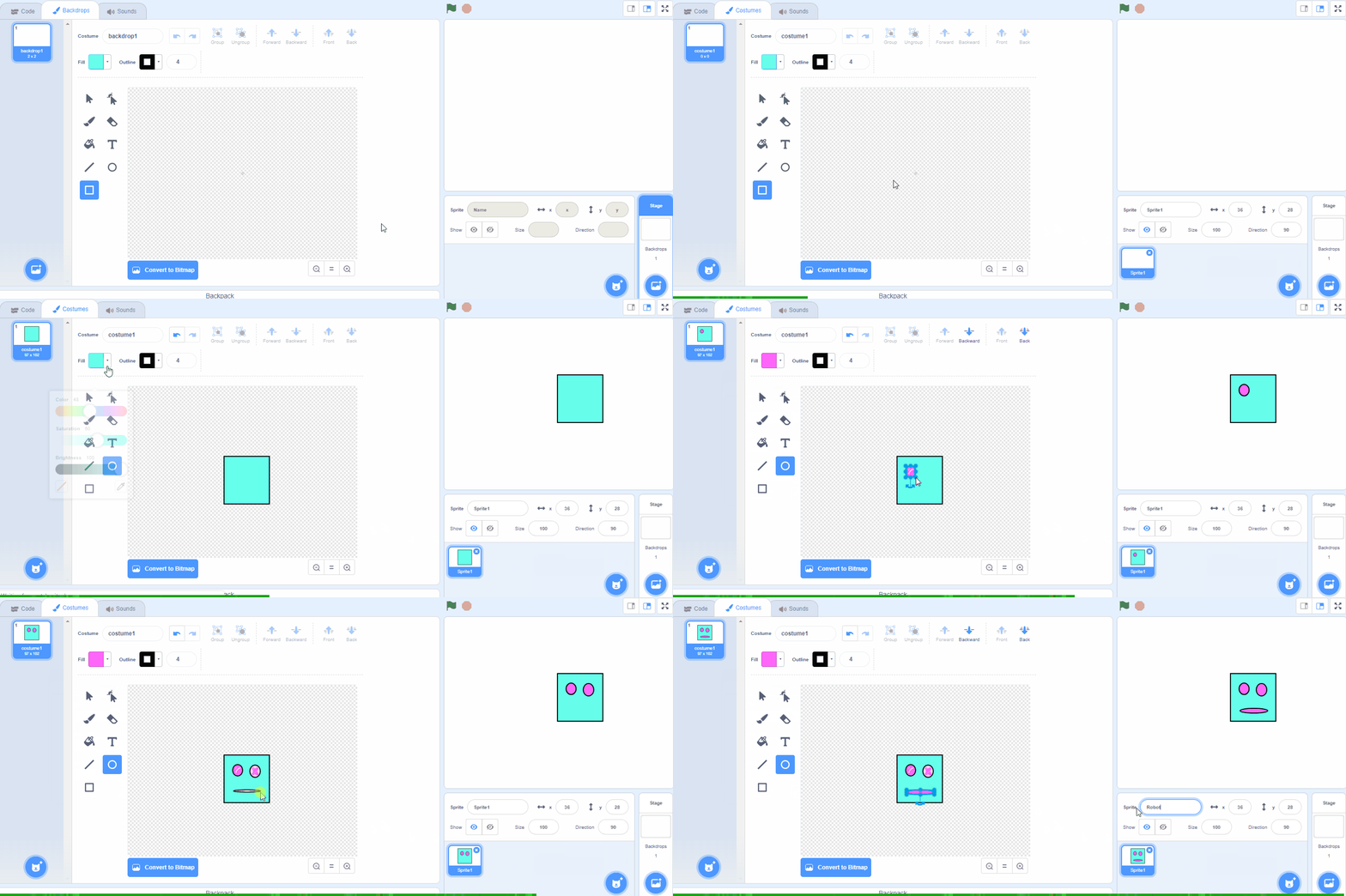
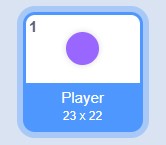
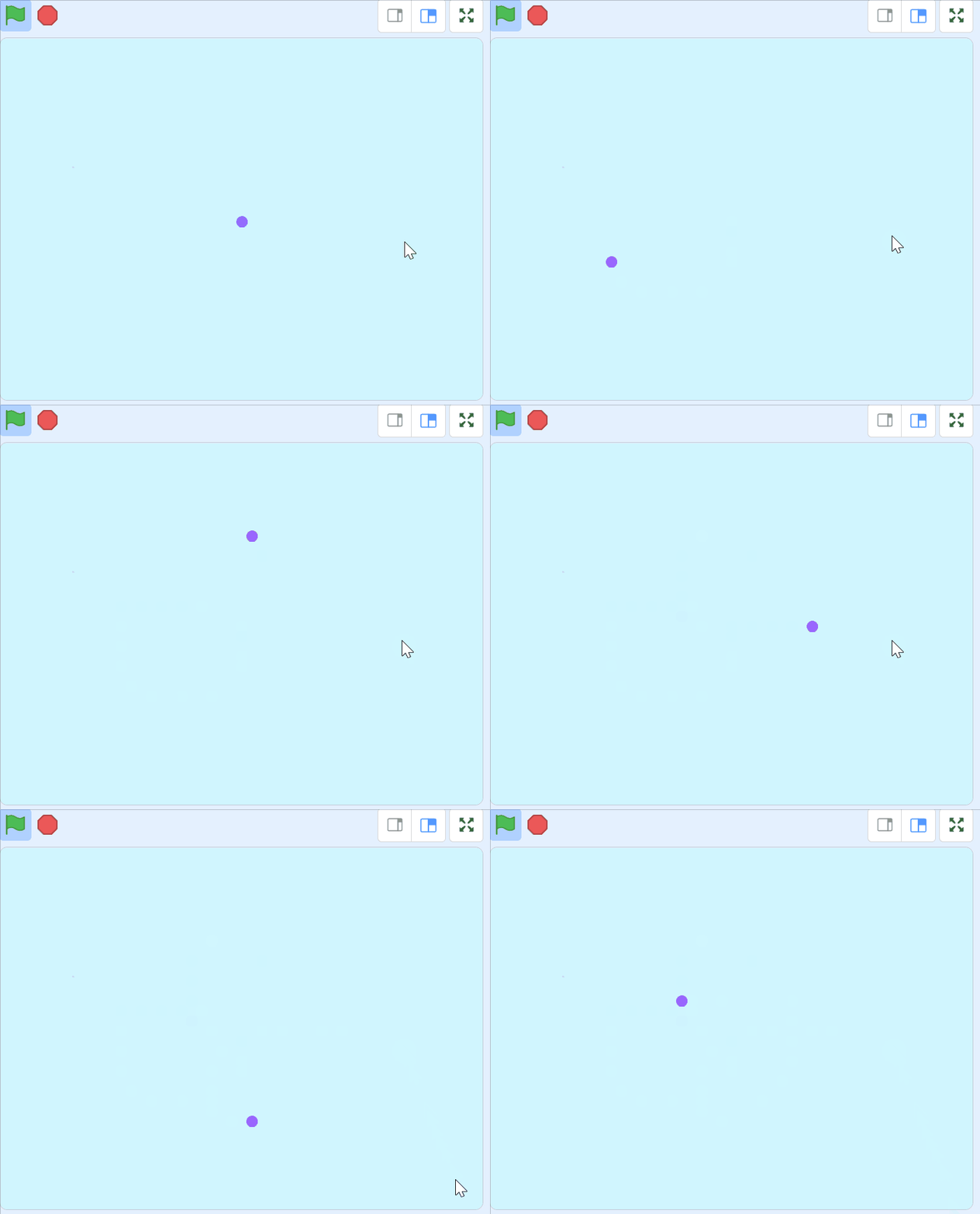
To create our Player sprite, we can go to the Scratch Paint Editor and create our own Player sprite. For this Player sprite, we want to use a simple circle.
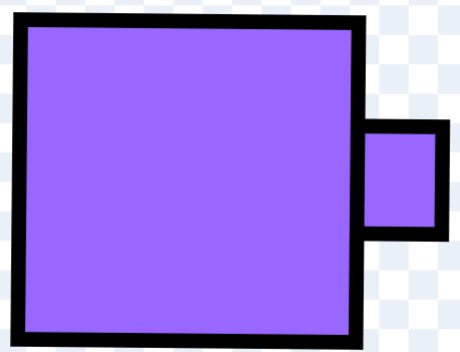
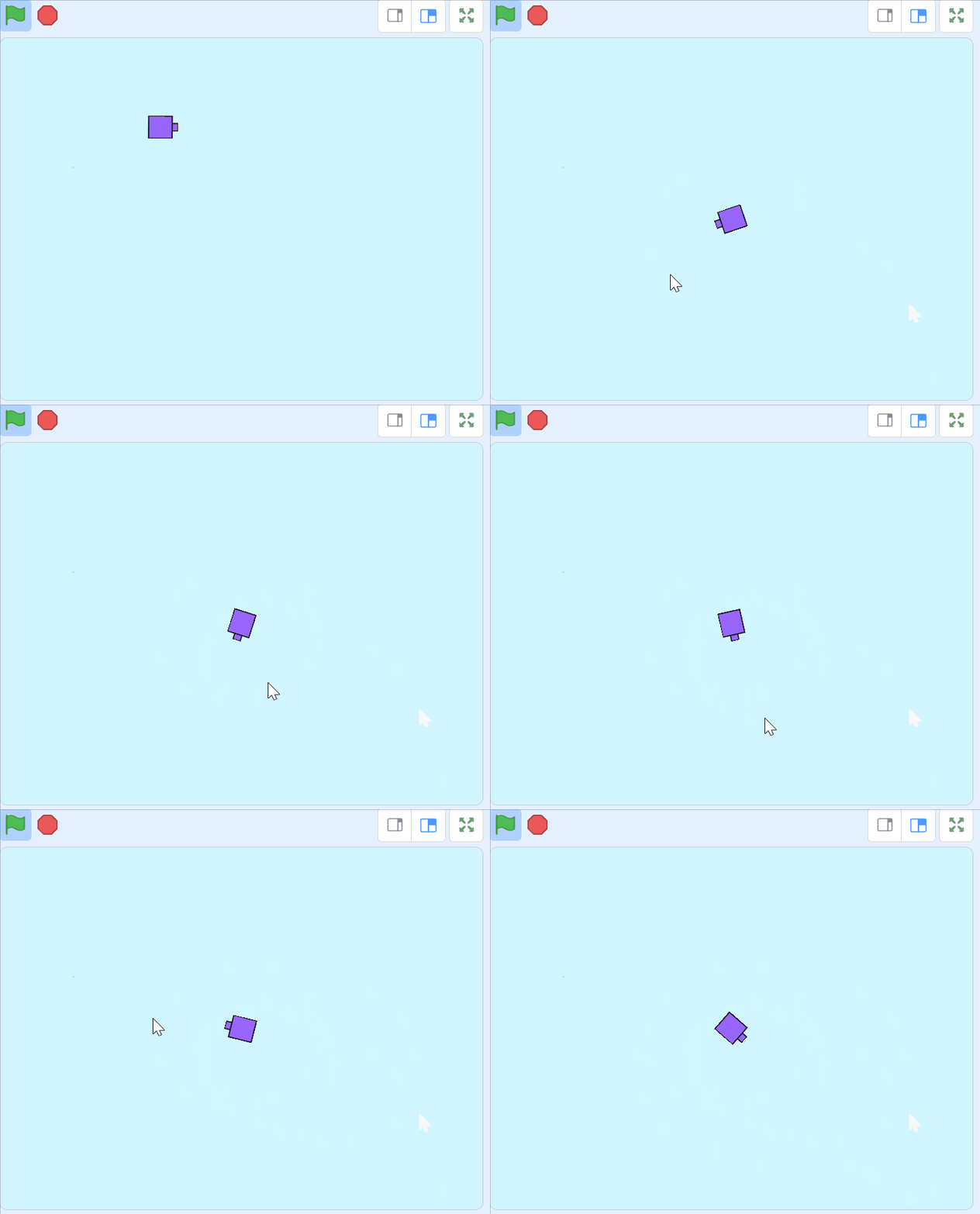
To create our Tank sprite, we can go also to the Scratch Paint Editor and create the Tank sprite. For this Tank sprite, we can use two squares to make it look like a tank.
You can create your own sprites using the sprite editor. To create a new sprite put your mouse over the Choose a Sprite button and then click on the paintbrush.
This create a blank sprite and will open the sprite editor where you can use the tools to create your sprite. You can even create extra costumes for your sprite!
Tip: give your sprite a name so that you can recognise it in the code blocks.
Now, we want our player to move around the game area. We can use the W,A,S and D keys to move our player sprite.
To make our player move, we can use the code below.
when I receive [Start v]
go to x:(0) y:(0)
hide
forever
if <key (a v) pressed?> then
change x by (-10)
end
if <key (d v) pressed?> then
change x by (10)
end
if <key (w v) pressed?> then
change y by (10)
end
if <key (s v) pressed?> then
change y by (-10)
end
If you're using a tablet or iPad without a physical keyboard, you won't be able to use keyboard keys like the arrow keys in your project. Instead, we'll add simple on-screen buttons (using sprites) that you can tap to do the same things. This keeps your project working great! Just follow these steps wherever the lesson talks about pressing a key.
First, add a new sprite for your button:
Now, program your button sprite to make things happen when you tap it. Here's how it works for different situations:
Example 1: If the lesson uses a key to trigger an action on a specific sprite (like making something move, turn, or jump)
Instead of code like this on your target sprite:
when [left arrow v] key pressed
change x by (-10) // or any action
Or this:
if < key [left arrow v] pressed? > then
change x by (-10) // or any action
end
Add this code to your new button sprite:
when this sprite clicked
broadcast [do action v]
Then, on your target sprite, add this to receive the message:
when I receive [do action v]
change x by (-10) // or any action
Tap the button on the screen, and the action will happen, just like pressing the key! Use a unique broadcast name for each different action or key.
Example 2: If the lesson uses a key to change a variable (like adding to a score or setting a value)
Instead of code like this:
when [space v] key pressed
change [score v] by (1)
Or this:
if < key [space v] pressed? > then
change [score v] by (1)
end
Add a new button sprite. Then, put this code on the button sprite:
when this sprite clicked
change [score v] by (1)
(If the variable is "for this sprite only," make sure it's set to "for all sprites" so the button can change it.)
Tap the button, and the variable changes, no message needed since it's something shared!

Now, we want to add codes to our Tank sprite.
We want to hide our Tank sprite when we start the game. To do this, we can use the code below.
when green flag clicked
hide
Next, we want our Tank sprite to follow our Player sprite wherever it goes. We also want our Tank sprite to point towards wherever our Mouse pointer is.
when I receive [Start v]
show
point in direction (90)
wait (1) seconds
forever
point towards (mouse-pointer v)
go to (Player v)