Game Microbit
Beginner
60 mins
Teacher/Student led
+85 XP

What you need:
Chromebook/Laptop/PC

Reaction Timer

Follow this guide to build a fun project on your Micro:bit. Start by creating a new project, add a welcome message, set up a countdown, introduce a random delay, create variables, and record your reaction time.
Teacher Class Feed

Load previous activity

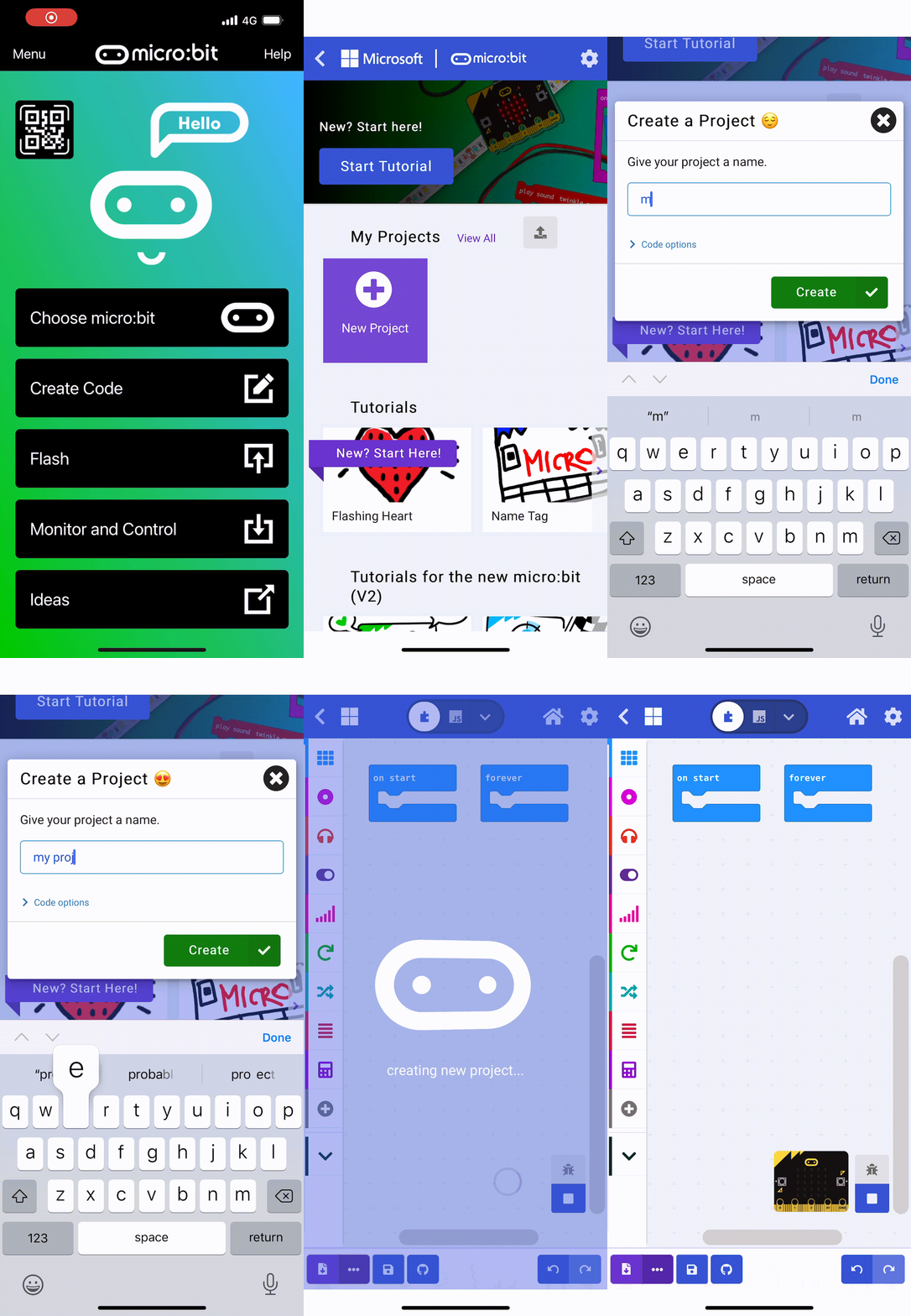
    1 - Create a New Project

    First, go to the Micro:bit website. Click on 'New Project' and name your project as 'Reaction Timer'.

    2 - Creating a Welcome Message

    Let's start by creating a welcome message that will be displayed when you power on your Microbit.

    Add the following code to your project:

    basic.showString("Get Ready")

    3 - Creating a Countdown

    After the welcome message, we are going to create a countdown from 3 to 1 and then show a line on the screen.

    Add the following new code to your project:

    basic.showString("Get Ready")
    basic.showNumber(3)
    basic.pause(1000)
    basic.showNumber(2)
    basic.pause(1000)
    basic.showNumber(1)
    basic.pause(1000)
    basic.showLeds(`
        . . . . .
        . . . . .
        # # # # #
        . . . . .
        . . . . .
        `)
    You could also create a function called 'countdown' and pass in the amount of seconds you want to count down. Have a think about how you could do this.

    4 - Adding a Random Delay

    To make the game unpredictable, let's add a random delay after the countdown. 

    Add the following new code to create a random delay between 1 to 5 seconds (1,000 to 5,000 milliseconds) and then show the signal (a fully lit up LED screen) to the player.

    basic.showString("Get Ready")
    basic.showNumber(3)
    basic.pause(1000)
    basic.showNumber(2)
    basic.pause(1000)
    basic.showNumber(1)
    basic.pause(1000)
    basic.showLeds(`
        . . . . .
        . . . . .
        # # # # #
        . . . . .
        . . . . .
        `)
    basic.pause(Math.randomRange(1000, 5000))
    basic.showLeds(`
        # # # # #
        # # # # #
        # # # # #
        # # # # #
        # # # # #
        `)
    

    5 - Create Variables

    We will need 2 variables to store some time stamps:

    1. startTime - to store when the signal is shown to the player.
    2. reactionTime - to store when the player presses the A button.

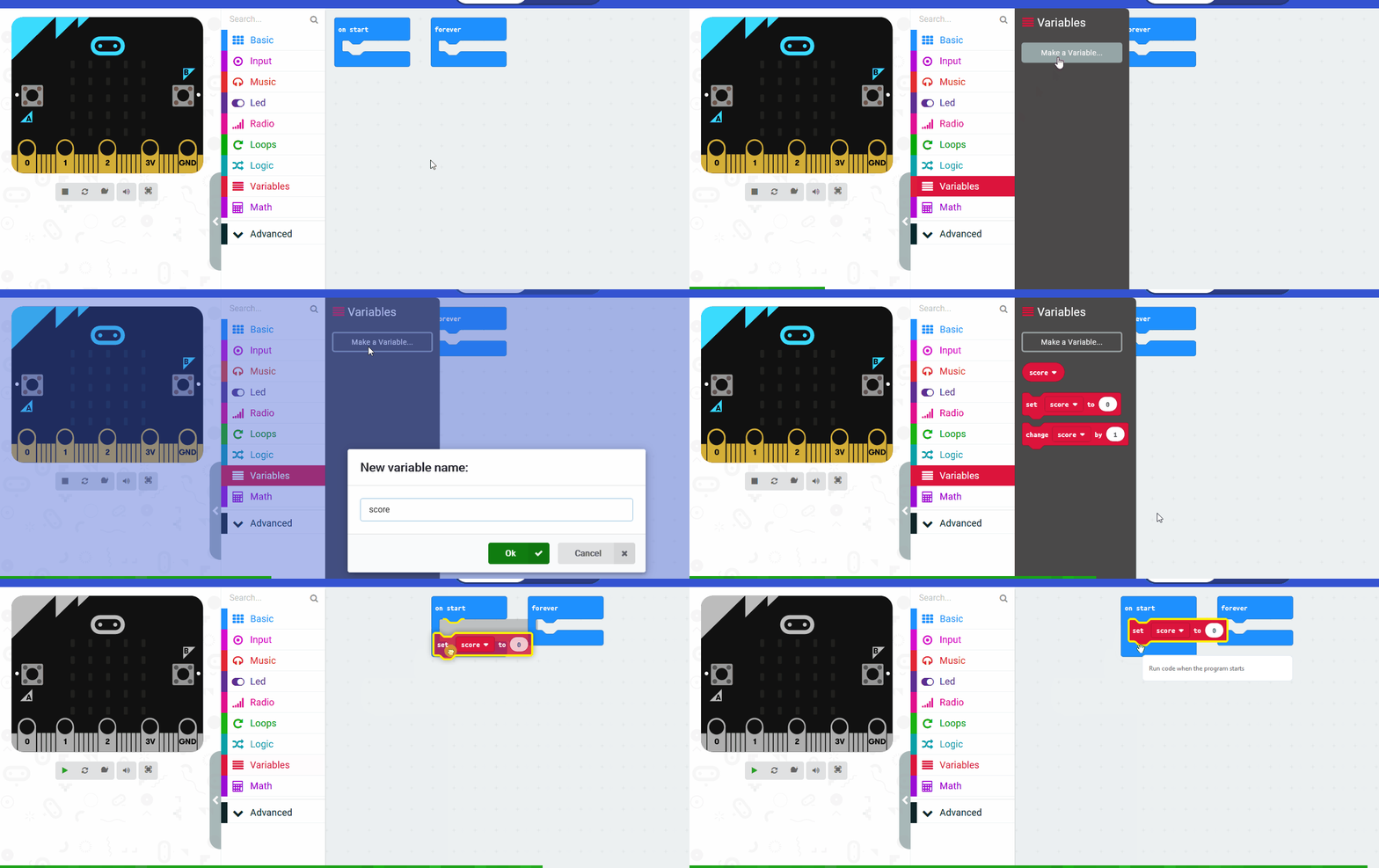
    Create these variables now and then add the following new code to set the startTime variable.

    let startTime = 0
    basic.showString("Get Ready")
    basic.showNumber(3)
    basic.pause(1000)
    basic.showNumber(2)
    basic.pause(1000)
    basic.showNumber(1)
    basic.pause(1000)
    basic.showLeds(`
        . . . . .
        . . . . .
        # # # # #
        . . . . .
        . . . . .
        `)
    basic.pause(randint(1000, 5000))
    basic.showLeds(`
        # # # # #
        # # # # #
        # # # # #
        # # # # #
        # # # # #
        `)
    startTime = input.runningTime()
    
    The running time (ms) block stores the number of milliseconds since the program started.
    123learn · Online learning platform

    Unlock the full learning experience

    You're previewing this lesson. Get full access to this lesson and hundreds more — each one ready to teach, with interactive activities, printable resources and pupil progress tracking built in.

    Hundreds of curriculum-aligned lessons
    Interactive activities in every lesson
    Printable resources & progress tracking
    Copyright Notice
    This lesson is copyright of Coding Ireland 2017 - 2025. Unauthorised use, copying or distribution is not allowed.
    🍪 Our website uses cookies to make your browsing experience better. By using our website you agree to our use of cookies. Learn more