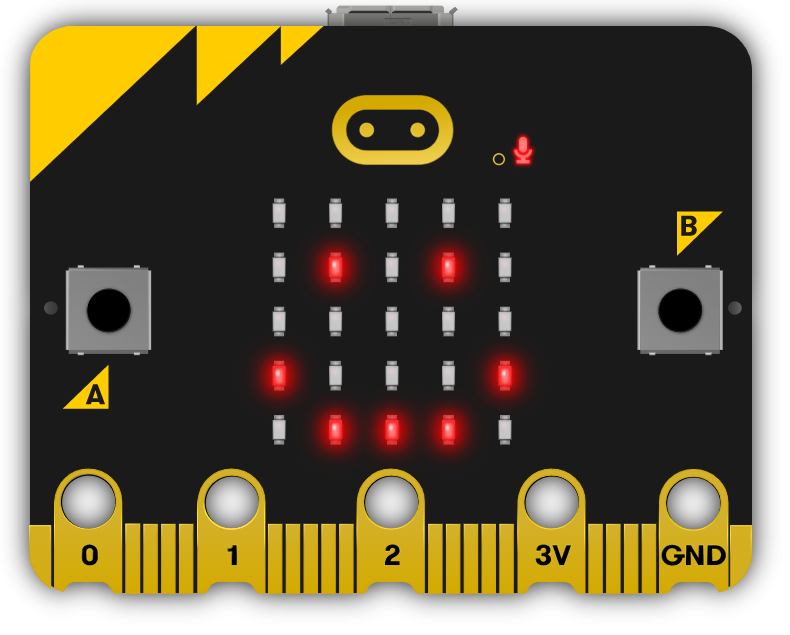
In this lesson we will turn our Microbit into a pet with different emotions depending on how we interact with it. We will need to feed and play with it to keep it happy!
To make our Microbits into pets we will use the different emoji icons and sounds to make them seem lifelike.
Our pets will start off happy and we are going to program the following:
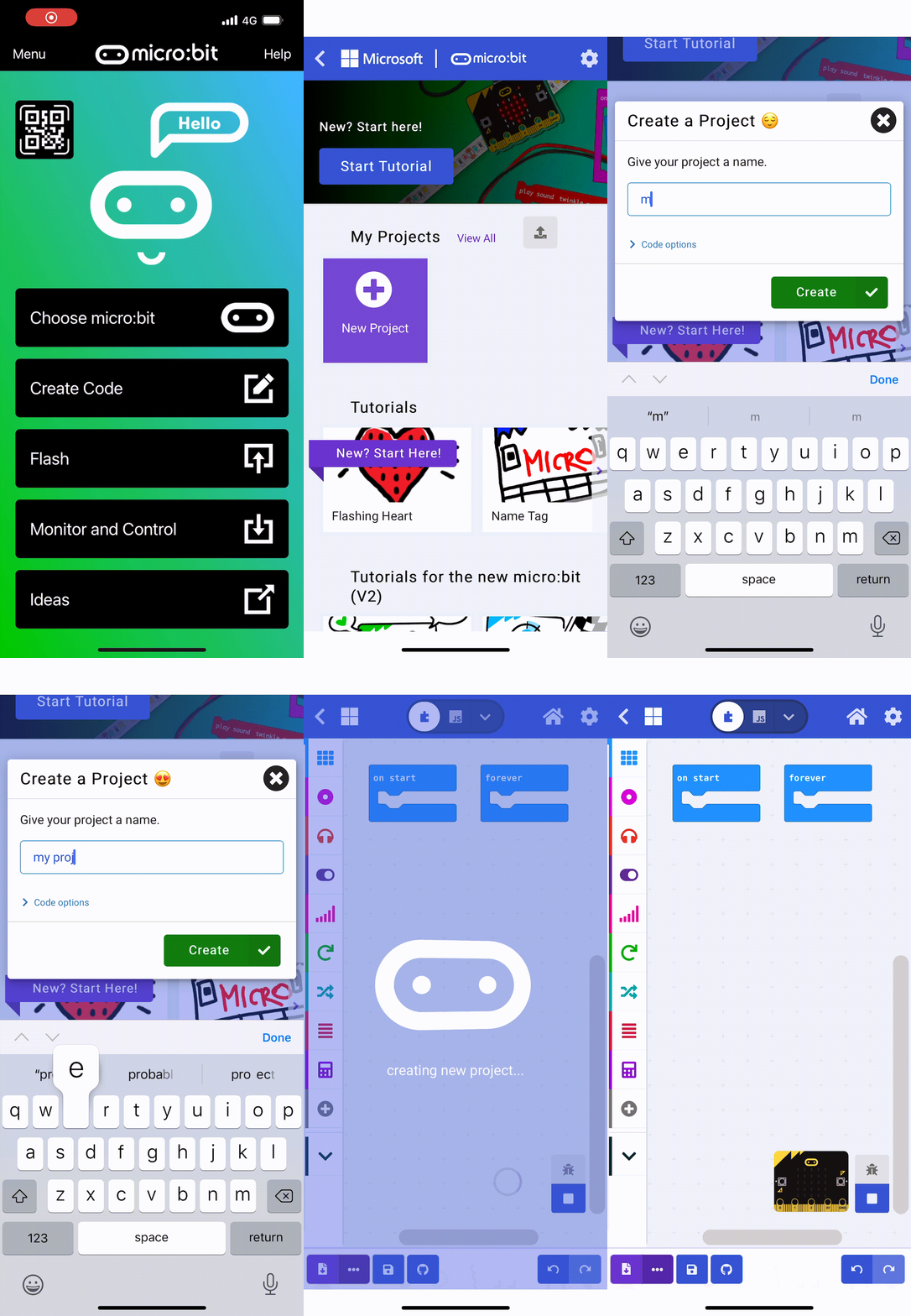
Go to the https://makecode.microbit.org/ website and create a new project.
Go to the Makecode.com Microbit website using the link below and click on the 'New Project' button underneath the 'My Projects' heading.
https://makecode.microbit.org/
Install the micro:bit app on your iPad or tablet.
Open the app, tap 'Create code' and then create a new project.

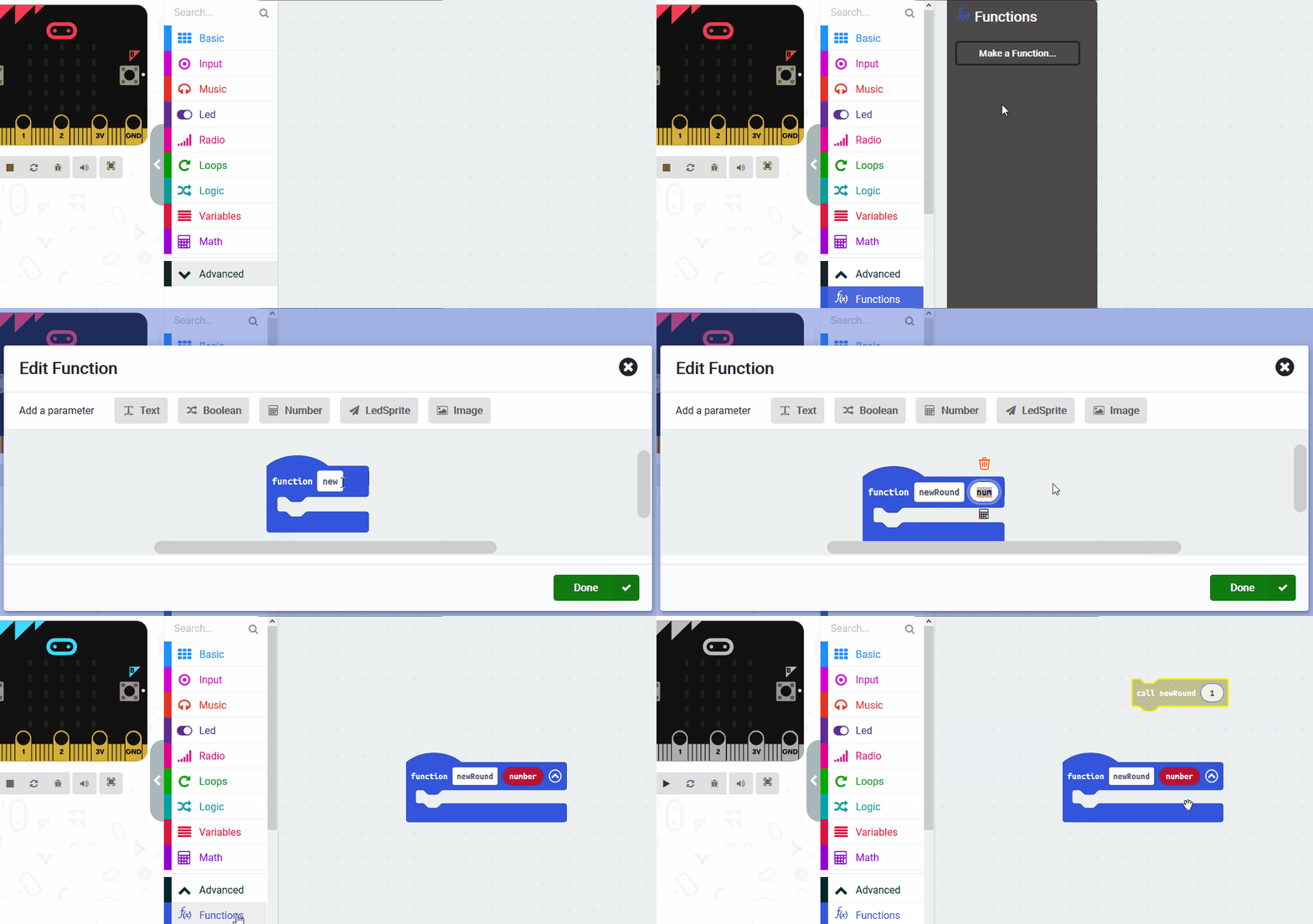
There will be a few times when we need to run some code to make the Microbit pet appear happy. Rather than repeat these code blocks over and over, we will create a 'happy' function with the code blocks and then call that 'happy' function whenever we want to run those code blocks.
Create a new function called 'happy' and then add the following code blocks inside it. Then Next call the happy function when we start the Microbit by adding it into the on start block.
function happy () {
basic.showIcon(IconNames.Happy)
soundExpression.happy.play()
}
happy()
Functions are useful if you have some code/instructions that you want to use again and again.
To create a function go to the Advanced > Functions toolbox and click 'Make a Function'.
Give your function a name that makes sense and choose whether to pass anything into the function. In this example we will pass in a number.
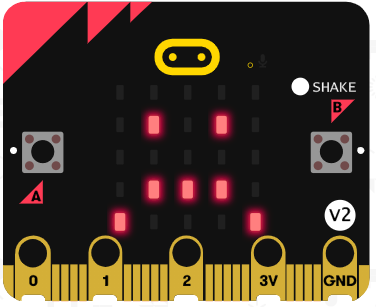
If you shake your Microbit pet then it will become sad. Add the following code to detect the shake and make it appear sad.
input.onGesture(Gesture.Shake, function () {
basic.showIcon(IconNames.Sad)
soundExpression.sad.play()
})
You're previewing this lesson. Get full access to this lesson and hundreds more — each one ready to teach, with interactive activities, printable resources and pupil progress tracking built in.