Microbit
Advanced
60 mins
Teacher/Student led
+105 XP

What you need:
Chromebook/Laptop/PC
Microbit

Microbit Finder

Get started with this exciting project using two Microbits. Follow step-by-step instructions to code them as a 'lost' and 'finder' pair. Programme buttons, set radio groups, and track proximity with signal strength indicators.

Teacher Class Feed

Load previous activity

    1 - Introduction

    For this project you will need 2 Microbits. Both of them will need to be powered on and one of the power sources will need to let you walk around with the Microbit, so either a Microbit battery pack or a USB power bank.

    The code that we create will be downloaded onto both Microbits and we will use the A and B buttons to set which Microbit is "lost" and which one is the "finder".


    2 - Create a new Microbit project

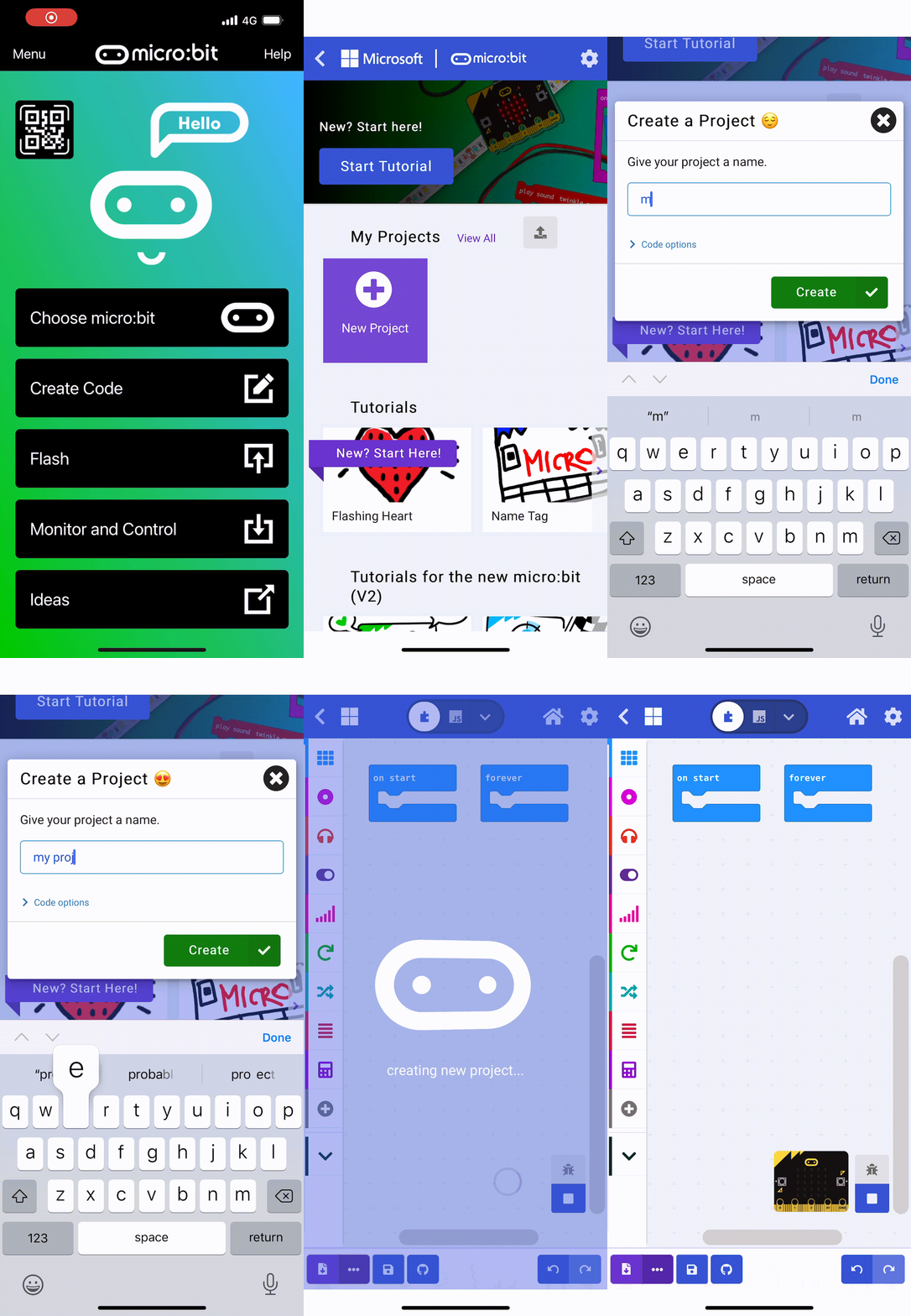
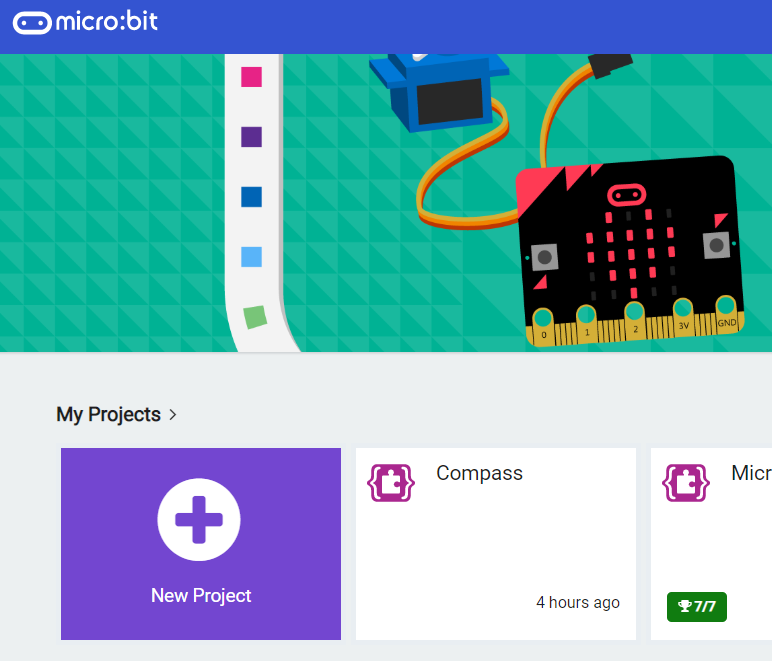
    Go to the https://makecode.microbit.org website and create a new project.

    3 - Create 2 variables

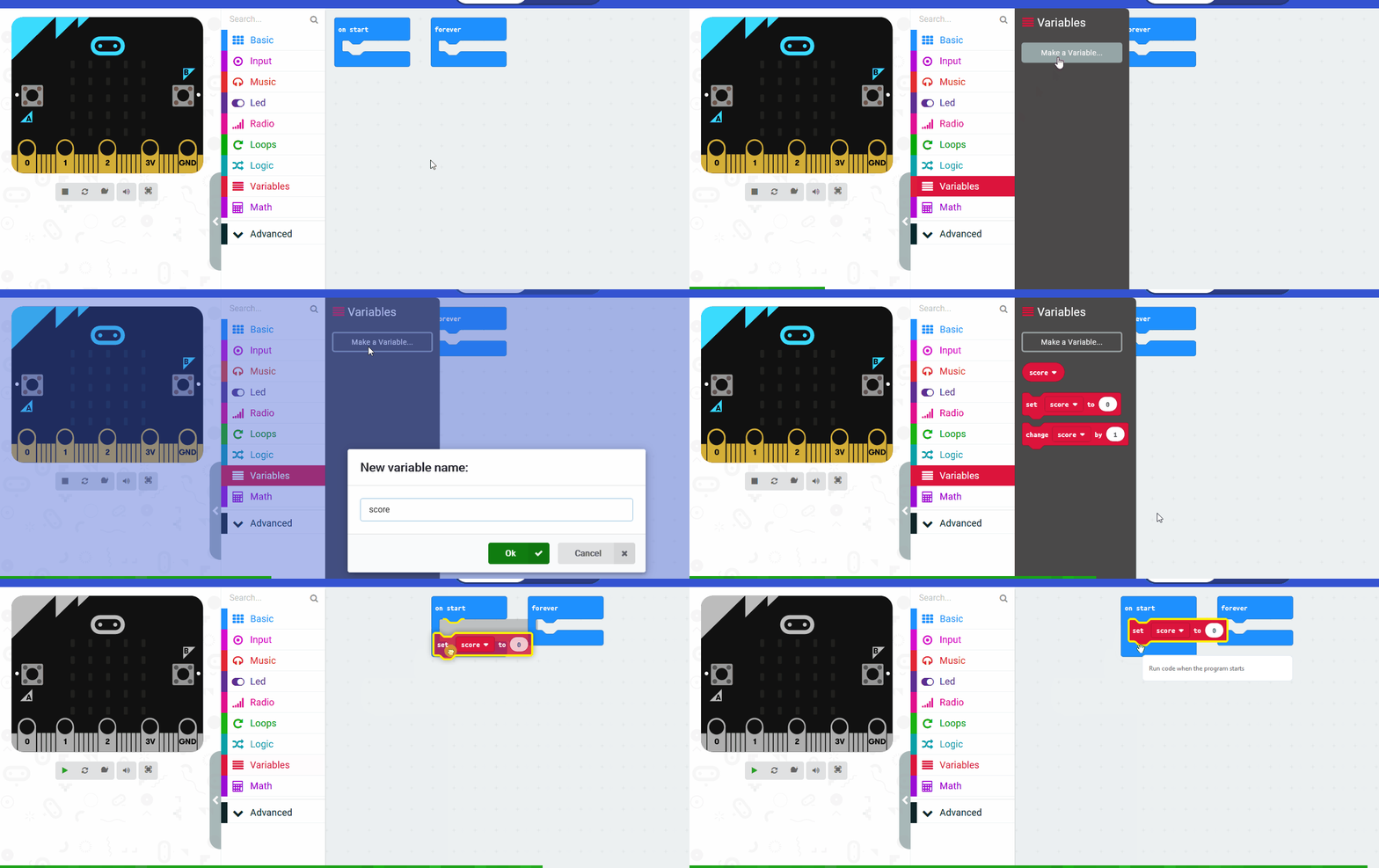
    For this project we will need to create the following 2 variables:

    1. mode - this will store if the Microbit is acting as the "lost" Microbit or the "finder" Microbit.
    2. signal - this will store the signal strength that we will use to determine how close the Microbits are to each other.

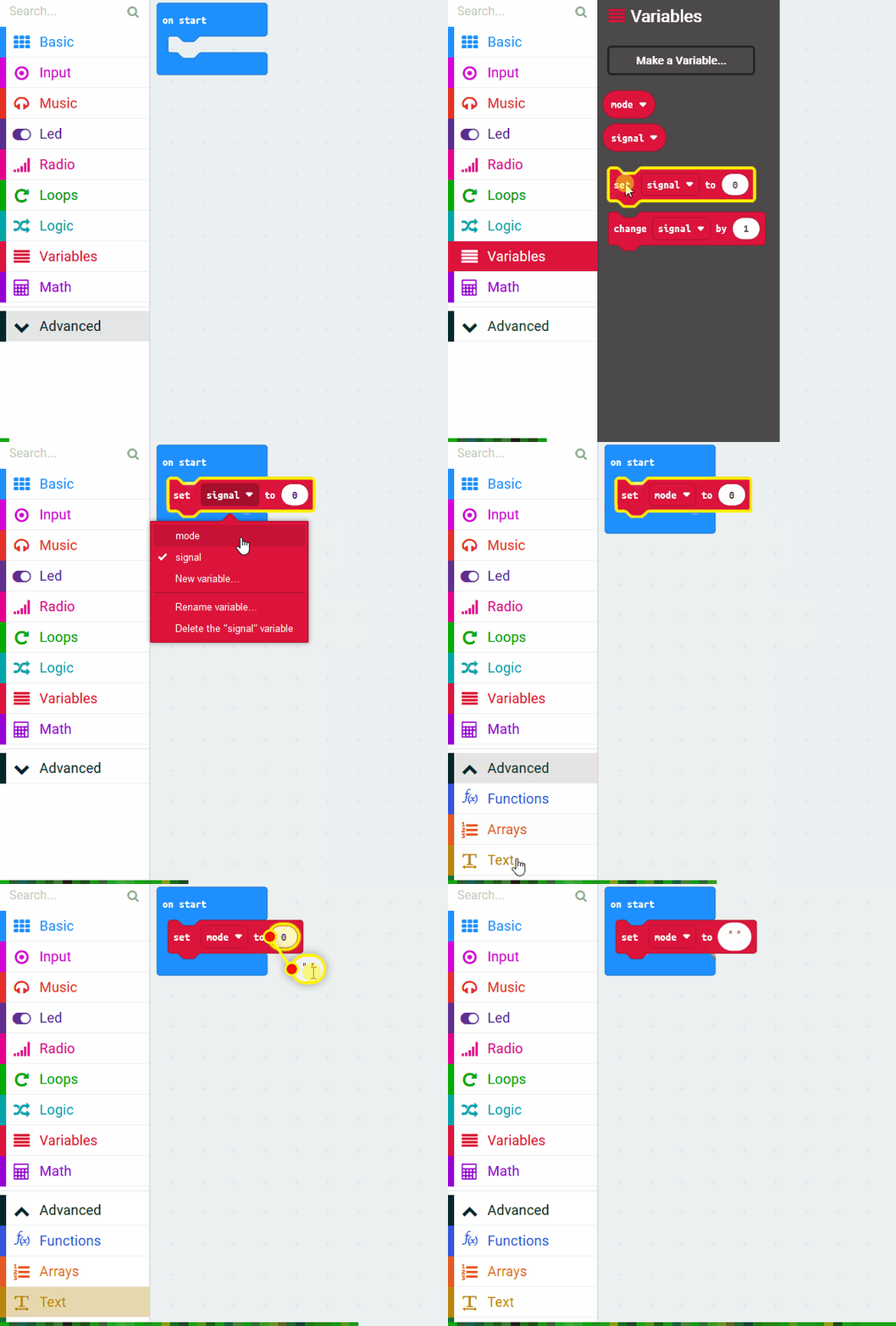
    Create a variable called mode and a variable called signal and then add the following code to setup the 'mode' variable to a blank string "".

    let mode = ""

    4 - Set the radio group

    We need to set the radio group that our Micorbits will be broadcasting on so that they can communicate with each other. A radio group is the channel that the Microbit both sends it's messages and listens for other messages. A Microbit can only send or receive in one group at a time.

    Add the following code to set the radio group to 1.

    let mode = ""
    mode = ""
    radio.setGroup(1)

    5 - Set the mode

    Next we are going to program the A and the B buttons to set the mode of each Microbit.

    If you press the button A then you will set that Microbit to be the finder Microbit.

    If you press the button B then you will set that Microbit to be the lost Microbit.

    Add the following code:

    input.onButtonPressed(Button.A, function () {
        mode = "finder"
    })
    
    input.onButtonPressed(Button.B, function () {
        mode = "lost"
        basic.showIcon(IconNames.Skull)
    })
    
    We set an icon to show for the lost Microbit so we can tell them apart. You can choose any icon to display.
    123learn · Online learning platform

    Unlock the full learning experience

    You're previewing this lesson. Get full access to this lesson and hundreds more — each one ready to teach, with interactive activities, printable resources and pupil progress tracking built in.

    Hundreds of curriculum-aligned lessons
    Interactive activities in every lesson
    Printable resources & progress tracking
    Copyright Notice
    This lesson is copyright of Coding Ireland 2017 - 2025. Unauthorised use, copying or distribution is not allowed.
    🍪 Our website uses cookies to make your browsing experience better. By using our website you agree to our use of cookies. Learn more