1 - Start: What We're Building ~5 mins
Last time we wrote programs that ran straight through, line by line. Today our programs will make choices and repeat themselves.
We are coding in Python on the micro:bit. We will build up control structures one step at a time — predict first, then build, run, and fix. Open the Python editor and get your micro:bit ready, but don't type anything yet.
Set the scene quickly: today our programs make choices and repeat. Confirm devices are logged in and the Python editor and micro:bit are ready. Ask: what is the difference between code that runs once and code that decides or repeats? Keep students out of the code until after the prediction step.
2 - Predict Before You Run ~10 mins
Before anyone runs anything, look at what we are about to build and commit to a prediction.
When the program runs, what will the micro:bit do? What will you see scroll on the display first? Say your prediction to your partner so you can check it in a moment.
This is the PRIMM predict beat. Have pairs commit out loud to what the first program will show on the display. Collect two or three predictions and park them on the board to revisit at the make-sense step. Don't confirm right or wrong yet.
3 - Introduction ~2 mins
In this lesson on control structures, you'll explore the building blocks that allow your programs to make decisions and repeat actions, essential for creating interactive and dynamic code on the Micro:bit. Control structures like conditionals and loops will enable you to respond to inputs, process data, and build more complex programs.
Here's what you'll be learning and doing:
- Understand conditional statements (if, else, elif) to make decisions based on conditions.
- Explore nested if statements for handling multi-layered decisions.
- Learn about loops (for and while) to repeat code efficiently.
- Discover nested loops and combining loops with conditionals for advanced control.
Frame the whole journey: decisions first (if/elif/else, nested), then repetition (loops), then the two combined. Ask students for an everyday example of a decision and a repeated action. No code is built here — keep it to setting expectations.
4 - Understanding Conditional Statements ~2 mins
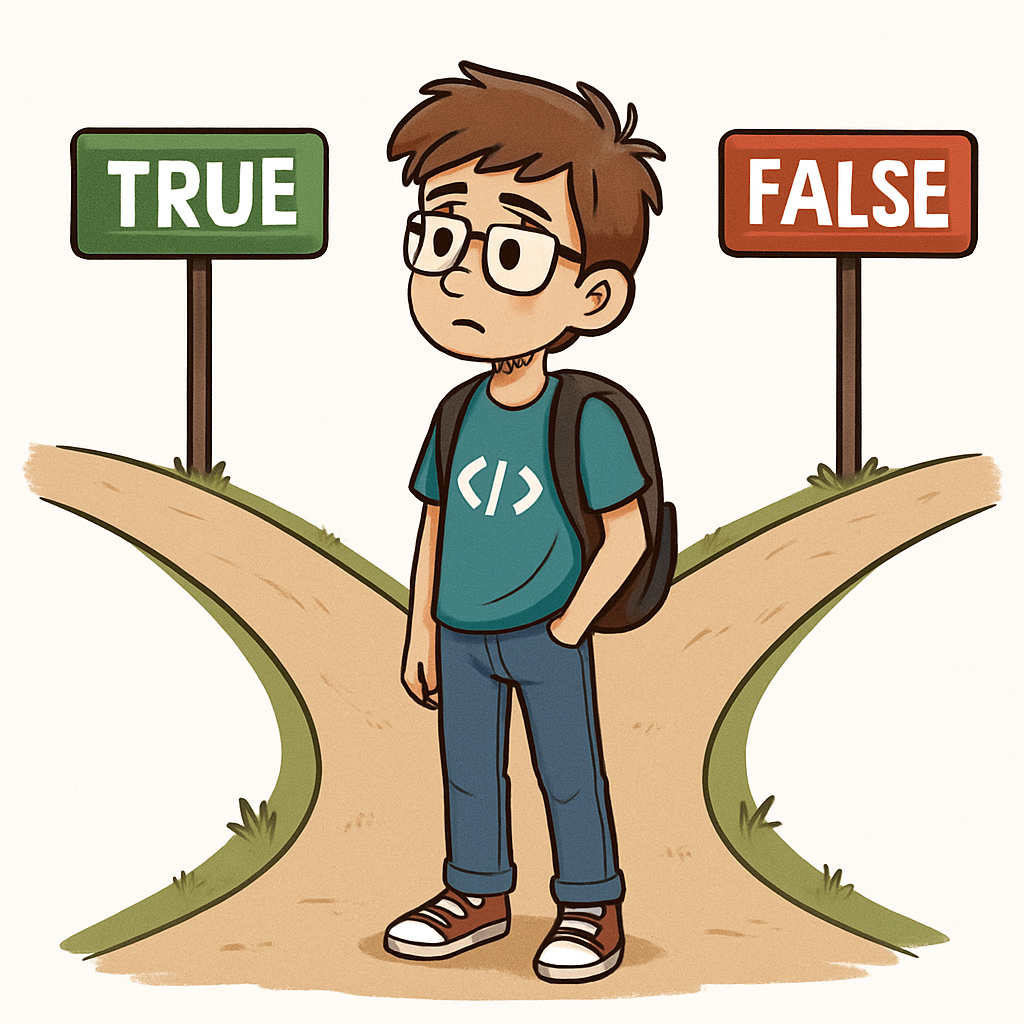 Conditional statements are a fundamental part of programming that allow your code to make decisions. They let your program execute different blocks of code depending on whether a certain condition is true or false. This is like choosing different paths based on the situation – for example, if it's raining, you might decide to take an umbrella; otherwise, you leave it behind.
The basic building block is the if statement. It checks a condition, and if that condition evaluates to true, the code inside the if block runs. If you want to handle the case when the condition is false, you can add an else clause. For checking multiple conditions, you can use elif (which stands for 'else if') to test additional scenarios.
Conditions are typically built using comparison operators. Here are some common ones:
==(equal to)!=(not equal to)>(greater than)<(less than)>=(greater than or equal to)<=(less than or equal to)
You can also combine conditions using logical operators like and (both must be true), or (at least one must be true), and not (reverses the condition).
For instance, imagine you're programming a Micro:bit to monitor temperature. You might write code to check if the temperature is above 30 degrees to display a 'Hot' warning, or between 20 and 30 for 'Warm', and below 20 for 'Cool'. This kind of decision-making makes your programs interactive and responsive.
Use the umbrella/rain analogy to anchor what a condition is. Model on the board what 'true' and 'false' mean for a single comparison. Key question: what happens if the condition is false and there is no else? Watch for students assuming something always displays.
5 - Simple If Statement ~2 mins
This simple if statement is like a gatekeeper – it only lets the code through if the condition is met. They are the foundation of making decisions in your code. In this step, we'll create a program that checks if a temperature variable is greater than 20 and, if it is, scrolls the message 'Warm' on the display. If the condition isn't met, nothing happens – that's how a basic if works.
We'll start by importing the Micro:bit library, setting a variable, and then using the if statement to check the condition. Remember, indentation is key in Python – the code inside the if must be indented (usually by 4 spaces or by pressing the tab key).
Add the following complete code to your editor:
from microbit import *

temperature = 25

if temperature > 20:
    display.scroll("Warm")
Here's a quick breakdown:
from microbit import *: This imports everything from the Micro:bit module so we can use functions like display.scroll.temperature = 25: We create a variable called temperature and set it to 25.if temperature > 20:: This checks if temperature is greater than 20. If true, the indented code runs.display.scroll("Warm"): If the condition is true, this scrolls 'Warm' on the LED display.
== instead of > in the condition? Test it out and observe.Model the simple if on the board, stressing indentation — the block under if must be indented. Run it with a temperature above and below 20 so students see that nothing happens when the condition is false. Bug to watch: missing or inconsistent indentation flagged by the editor. Support: have students change just the temperature value and re-run.
Unlock the full learning experience
You're previewing this lesson. Get full access to this lesson and hundreds more — each one ready to teach, with interactive activities, printable resources and pupil progress tracking built in.
This lesson is copyright of Coding Ireland 2017 - 2025. Unauthorised use, copying or distribution is not allowed.