1 - Start: What We're Building ~5 mins
Quick recap: you can already train and export a machine-learning model. Today we put that model to work inside a game. We are building a Rock, Paper, Scissors game in Scratch that you play against the computer using your own hand gestures.
Open the project you saved earlier and have the model you trained ready to load. We will predict first, then build, run and fix as we go.
Open the build on the board and have students open the project they saved earlier. Confirm everyone can reach the editor and that their trained model is ready to load. Ask: what does it mean to use a model 'inside' a program rather than just training it? Keep the recap brief and move to the prediction.
2 - Predict Before You Run ~10 mins
Before anyone clicks the green flag, look at what we are about to build and commit to a prediction. When the program runs, what do you think will happen first? Will the computer or the player choose first, and how will the game know which gesture you are showing the camera?
Run the PRIMM predict beat. Ask students to commit out loud or in pairs: what happens first when the green flag is clicked, and how will the game know which gesture the player is showing? Collect two or three predictions and park them on the board to revisit at the make-sense step. Support: prompt with the question 'who chooses first?' for pairs who are unsure.
3 - Introduction ~2 mins
In this lesson, you will create a fun Rock, Paper, Scissors game using Scratch and Google Teachable Machine.
You will learn how to use your Teachable Machine Image model with rock, paper, and scissors hand gestures to play against the computer.
If you don't have a Teachable Machine Image model, don't worry! You can use the provided model.
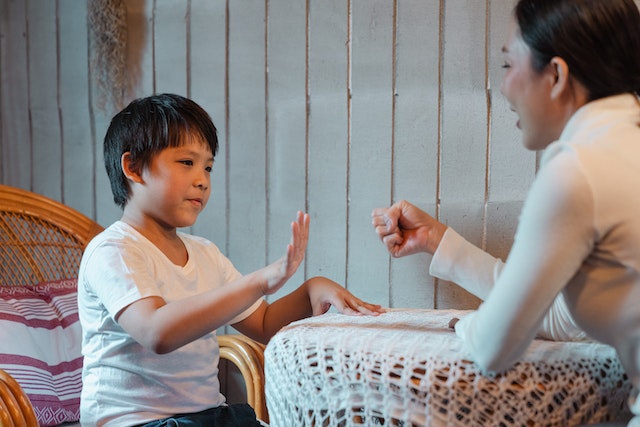
Set the scene: today's game uses the trained image model to read hand gestures. Reassure anyone without a model that the provided one works fine. Key question: why might we want the program to recognise a real-world gesture rather than a key press? No code to model yet — just frame the goal.
4 - Setup Scratch and Tm2scratch ~2 mins
Go to https://stretch3.github.io/ and start a new Scratch project and delete the Cat sprite.
Then, add the TM2Scratch extension by clicking on the Extensions button at the bottom left corner of the screen and selecting TM2Scratch. This extension allows you to use Google Teachable Machine Image models in your Scratch projects.
When you add this extension, it will automatically try and use your computer's camera. If necessary, click on 'Allow' to give it permission to use your camera. You should see what the camera is showing in the stage area.
Understanding and Adding Extensions in Scratch
What are Scratch Extensions?
Scratch Extensions are additional sets of blocks that expand the capabilities of your Scratch projects. They allow you to:
- Mention extensions like Pen here
- Connect with external hardware (e.g., microbits)
- Access web-based services (e.g., Google Translate, Amazon Text to Speech)
- Use more advanced programming features
How Extensions Work
When you add an extension to your project:
- New blocks appear in the blocks palette
- These blocks are grouped under a category named after the extension
- You can use these blocks just like any other Scratch blocks
Adding an Extension to Your Project
- Look for the "Add Extension" button in the bottom-left corner of the Scratch editor
- Click the "Add Extension" button
- A window will open showing all available extensions
- Browse through the options or use the search bar to find a specific extension
- Click on the extension you want to add
- The extension is now added to your project, and its blocks appear in the blocks palette
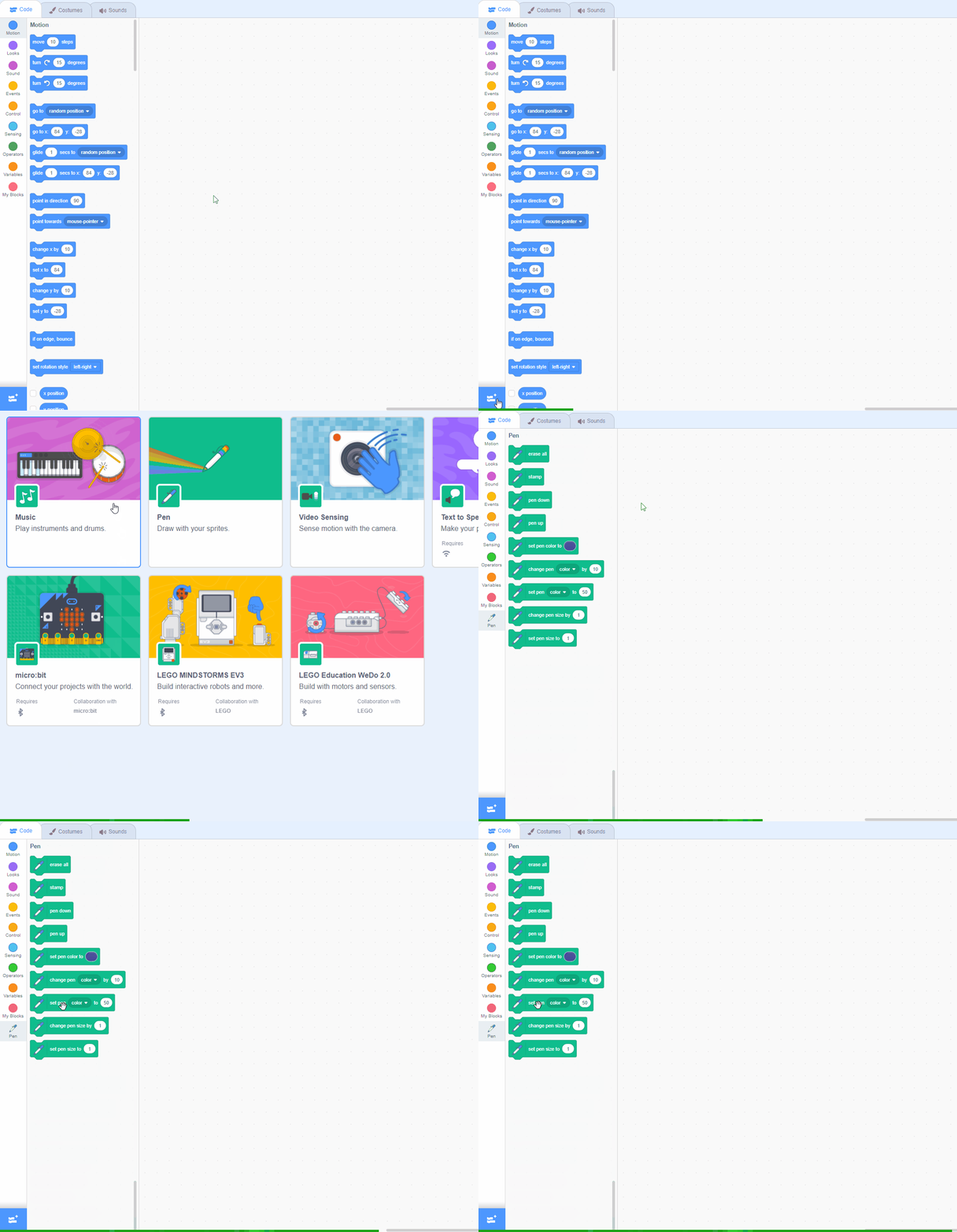
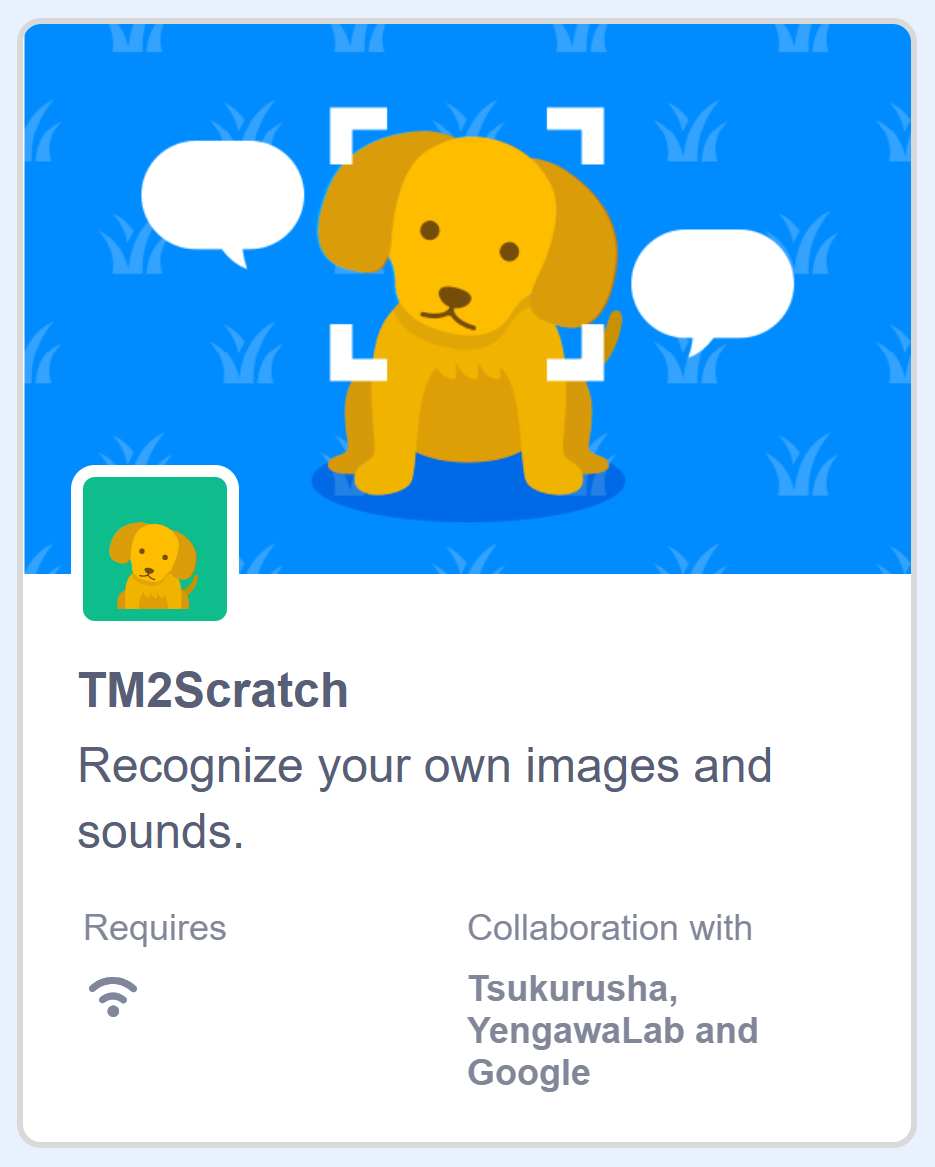

Model opening the editor and adding the camera-based image extension on the board. Watch for the camera permission prompt — students must allow it or nothing will appear in the stage. Common issue: another open app is holding the camera; close it. Differentiation cue: pair anyone whose camera fails with a working device while you troubleshoot.
5 - Add a Sprite ~2 mins
Add a new sprite to the project that will represent the computer's choice in the game. You can choose any sprite you like, but for this example, we'll use the 'Gobo' sprite.
To add a sprite from the sprite library follow these steps:
- Put your mouse over the Choose a Sprite button
- Click on the magnifying glass
- Find the sprite you want in the library
- Click on your chosen sprite
You can use search box or the filter links (Animals, People, Fantasy etc) to locate your sprite.
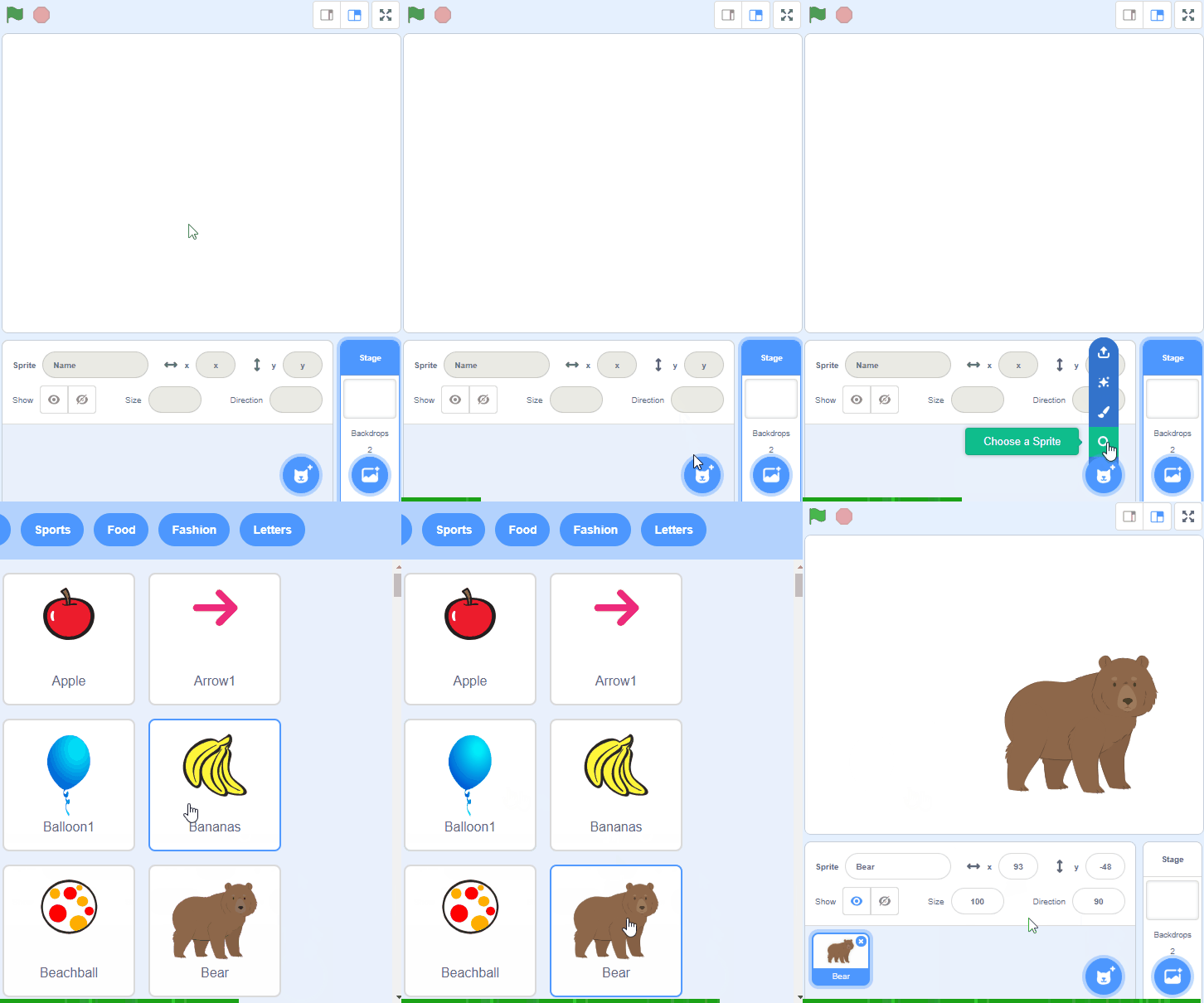
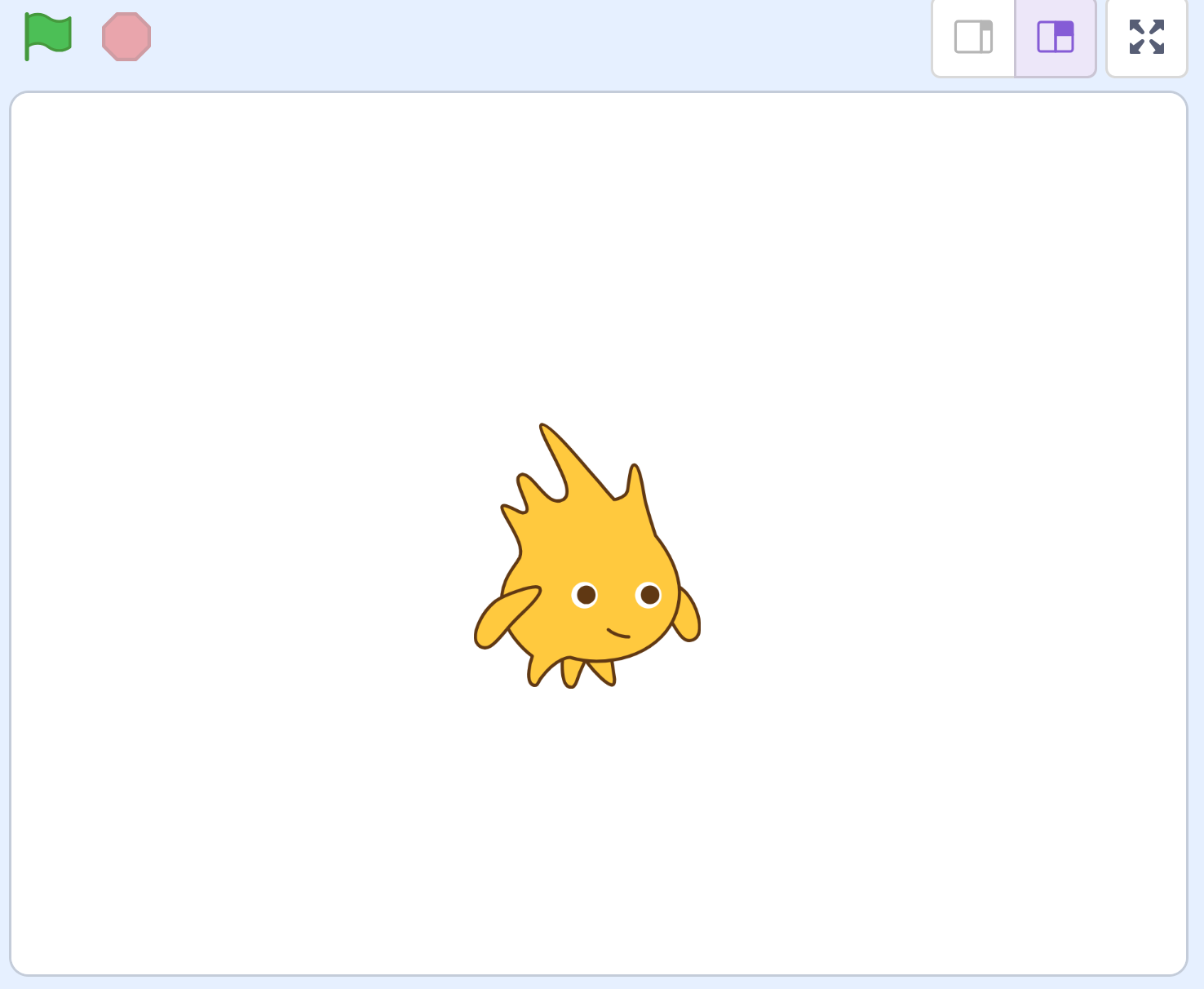
A quick step — students add a sprite to stand for the computer's choice. Keep it light; any sprite is fine. Ask: why does the computer need its own choice represented on screen? Circulate so this does not eat into build time.
Unlock the full learning experience
You're previewing this lesson. Get full access to this lesson and hundreds more — each one ready to teach, with interactive activities, printable resources and pupil progress tracking built in.
This lesson is copyright of Coding Ireland 2017 - 2025. Unauthorised use, copying or distribution is not allowed.
Scratch is developed by the Lifelong Kindergarten Group at the MIT Media Lab. It is available for free at https://scratch.mit.edu