You are going to build a number-guessing game on the micro:bit, then flip the very same project to its Python view and read your own code. The micro:bit picks a secret number from 1 to 9. You press button A to change your guess (it shows on the LED screen) and button B to check it: a happy face means you got it, an arrow points the way to go.
The big idea: a variable and a comparison are the same whether you read them as blocks or as Python. Only the way they are written on the screen changes.
Before you build it, picture the four moves the game makes:
- Pick a secret number from 1 to 9 and store it.
- Keep a guess, starting at 1, and show it on the LED screen.
- On button A: add 1 to the guess (wrapping back to 1 after 9) and show it.
- On button B: compare the guess with the secret — equal shows a happy face, lower shows an up arrow (guess higher), higher shows a down arrow (guess lower).
Open the MakeCode micro:bit editor and build the game in blocks. Use a variable for the secret number and another for the guess, an on button pressed event for A and for B, and an if / else if / else to compare them. Your finished program looks like this:
let secret = randint(1, 9)
let guess = 1
basic.showNumber(guess)
input.onButtonPressed(Button.A, function () {
    guess += 1
    if (guess > 9) {
        guess = 1
    }
    basic.showNumber(guess)
})
input.onButtonPressed(Button.B, function () {
    if (guess == secret) {
        basic.showIcon(IconNames.Happy)
    } else if (guess < secret) {
        basic.showArrow(ArrowNames.North)
    } else {
        basic.showArrow(ArrowNames.South)
    }
})
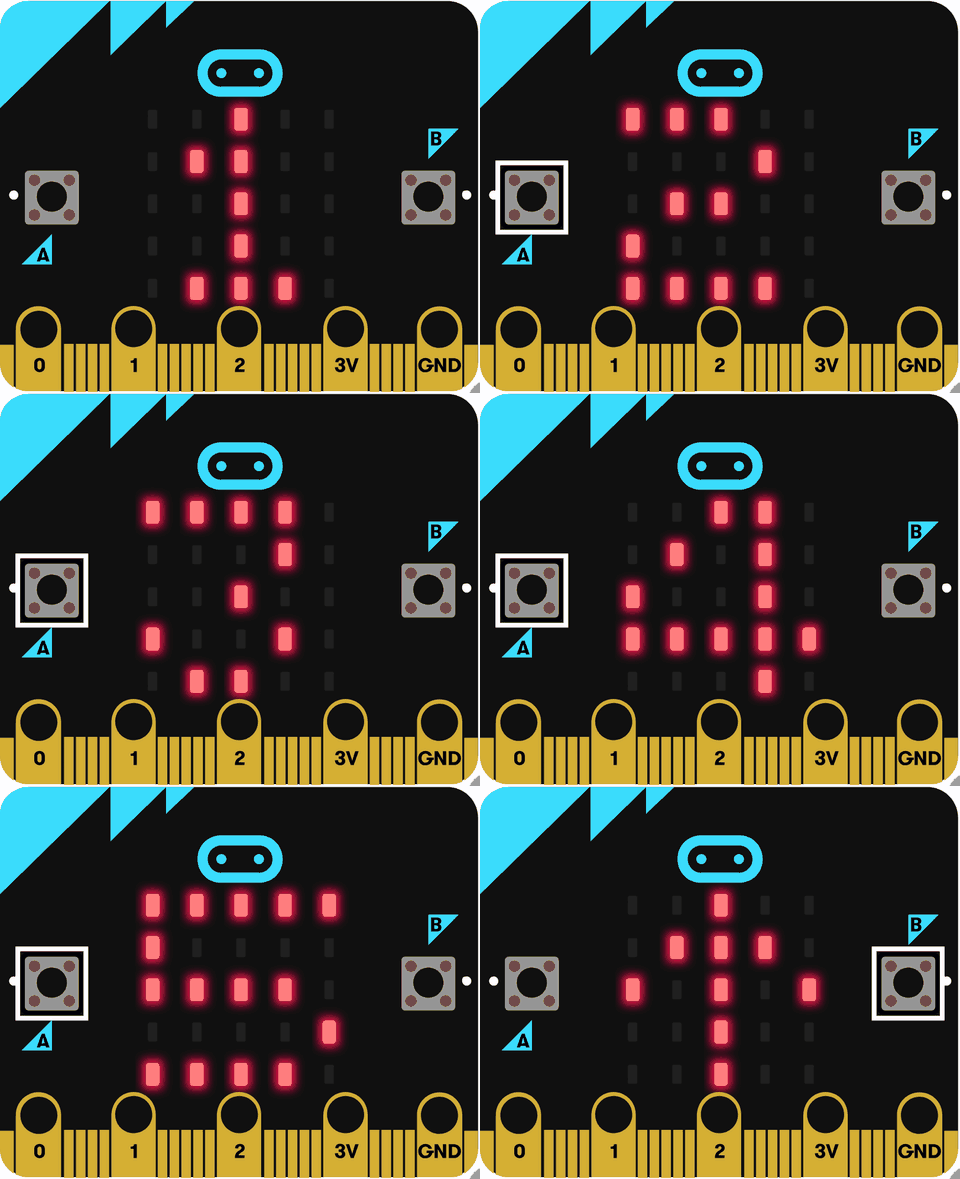
Run your program on the simulator and play it. Press A a few times to count your guess up the LED screen, then press B to check — here the guess is lower than the secret, so the micro:bit shows an up arrow to say “guess higher”.
Now flip the same project to its Python view (use the toggle at the top of the editor) and read your own code. It is the exact same game — only the way it is written has changed:
secret = randint(1, 9)
guess = 1
basic.show_number(guess)

def on_button_pressed_a():
    global guess
    guess += 1
    if guess > 9:
        guess = 1
    basic.show_number(guess)
input.on_button_pressed(Button.A, on_button_pressed_a)

def on_button_pressed_b():
    if guess == secret:
        basic.show_icon(IconNames.HAPPY)
    elif guess < secret:
        basic.show_arrow(ArrowNames.NORTH)
    else:
        basic.show_arrow(ArrowNames.SOUTH)
input.on_button_pressed(Button.B, on_button_pressed_b)
Find the pieces you placed as blocks: the secret and guess variables, the two button handlers, and the if / elif / else that compares the guess with the secret. The logic is already yours; the only new thing is the typing.
Unlock the full learning experience
You're previewing this lesson. Get full access to this lesson and hundreds more — each one ready to teach, with interactive activities, printable resources and pupil progress tracking built in.
This lesson is copyright of Coding Ireland 2017 - 2025. Unauthorised use, copying or distribution is not allowed.